Publishing a new WordPress post is only half the job. You also need to give your readers a simple way to discover it.
Social media can help, search traffic takes time, and asking readers to visit your website every day is rarely practical. Email is different. Once someone subscribes, your new posts can reach their inbox without requiring them to remember to check your site.
One of the simplest ways to do this is WordPress RSS to email.
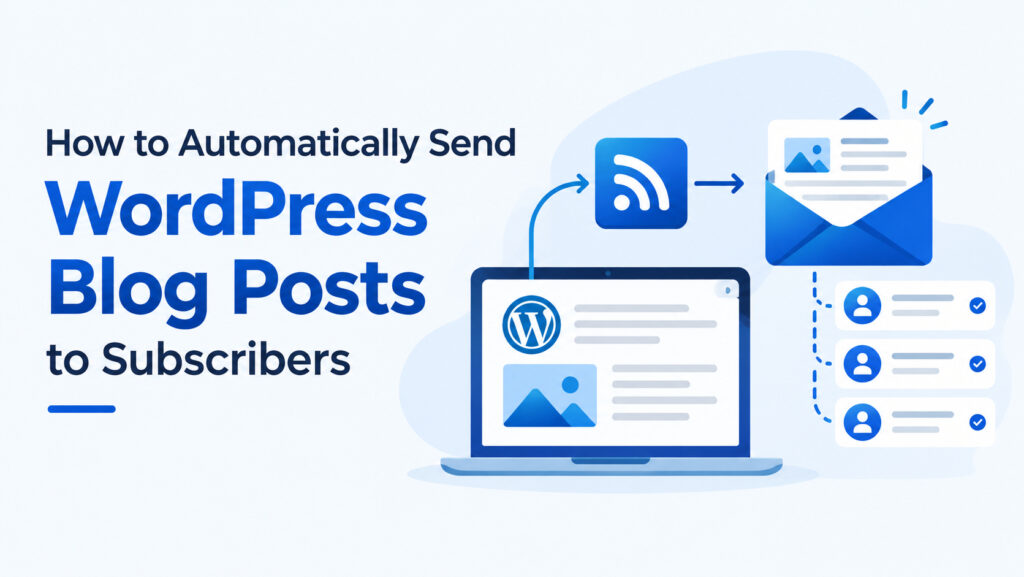
WordPress already generates an RSS feed for your posts. Instead of manually copying every new article into an email newsletter, you can connect that feed to an RSS-to-email service and let the system handle the delivery automatically.
This guide explains how the setup works, how to add a WordPress newsletter widget, and how to automatically send new WordPress posts to confirmed subscribers.
What Is WordPress RSS to Email?
WordPress RSS to email is a way to turn your existing WordPress RSS feed into automatic email updates.
Instead of creating a separate email every time you publish, the workflow looks like this:
- You publish a new post on WordPress.
- Your WordPress RSS feed updates automatically.
- Your RSS-to-email service detects the new post.
- Confirmed subscribers receive an email containing the post information.
- The reader clicks through to the article on your website.
In other words, your existing publishing workflow stays the same. You continue writing in WordPress, while your RSS feed becomes the bridge between your website and your email subscribers.
Why Use RSS Instead of Manually Creating Every Email?
If you publish regularly, manually creating an email for every new article can become repetitive.
You have to write the email, add the article link, format the message, select the subscribers, and send it. Do that several times a week and email distribution becomes another task competing with writing.
RSS already contains the basic information needed to notify subscribers about new posts.
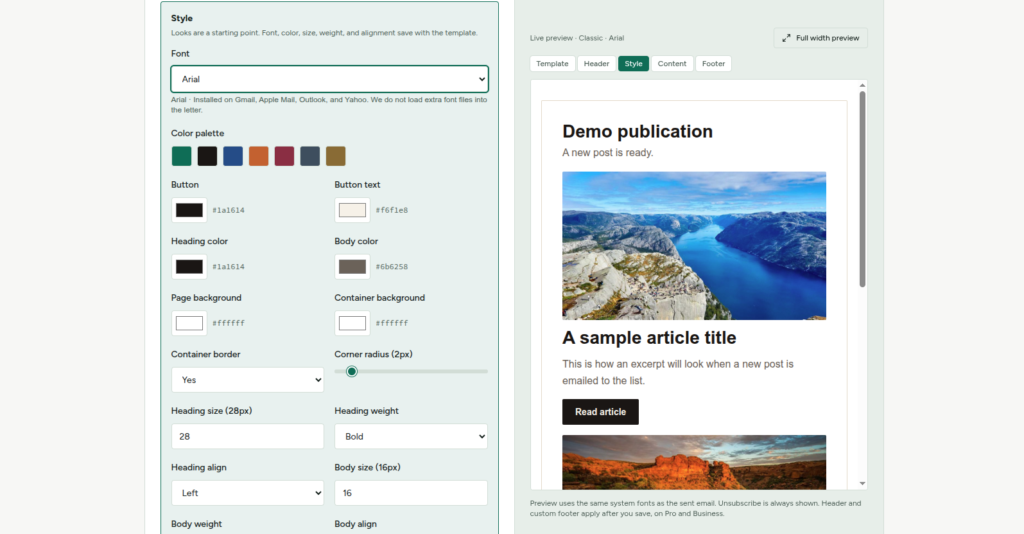
That makes RSS-to-email particularly useful for bloggers, publishers, news websites, content creators, and small businesses that want an auto email new WordPress post workflow without turning every article into a separate campaign.
Step 1: Make Sure Your WordPress Site Has an RSS Feed
WordPress normally provides an RSS feed for published posts.
Your site will generally have a feed URL associated with your posts. Depending on your WordPress setup, it is commonly available through the site’s standard feed endpoint.
The important part is that you already have a feed containing your published content. You do not need to create a second publishing system just for email.
If your WordPress site is already publishing posts normally, the RSS feed is the starting point for the entire process.
Step 2: Choose an RSS-to-Email Service
The next step is connecting your WordPress feed to a service that can deliver new posts to subscribers.
There are many newsletter platforms that can send campaigns, but they are not all designed around a simple RSS-to-email workflow. Some introduce campaign builders, advertising, tracking pixels, wrapped links, or hosted newsletter pages.
If your main requirement is straightforward post delivery, a simpler approach can make more sense.
SendRSS is designed specifically around RSS-to-email publishing. You provide the RSS or Atom feed you already publish, collect subscribers through a signup widget, and confirmed readers receive new posts by email.
The email is designed to send readers back to your own article rather than keeping them inside a separate hosted reading environment.
Step 3: Add a WordPress Newsletter Widget
Once your RSS feed is connected, you need a way for visitors to subscribe.
This is where a WordPress newsletter widget becomes useful.
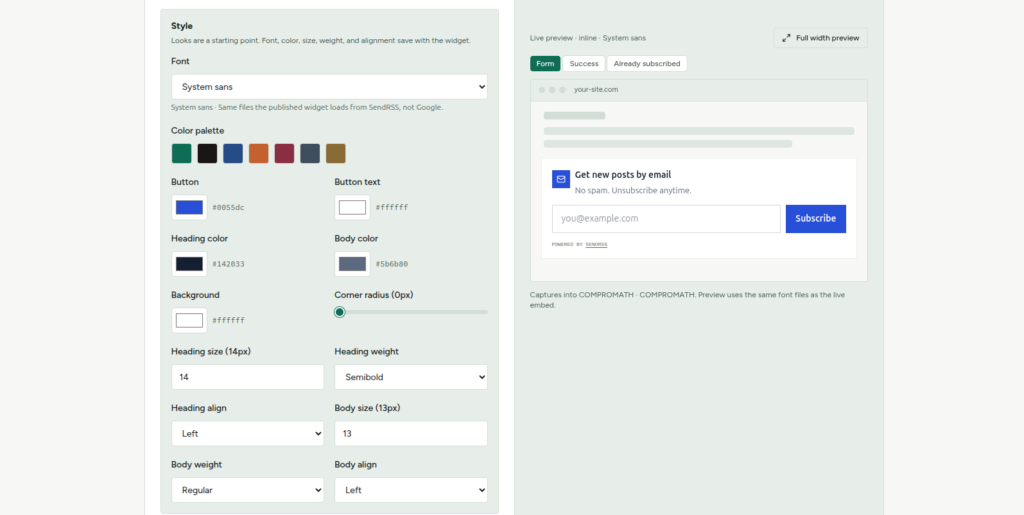
With SendRSS, you can add an email signup form to the WordPress site you already have. The signup widget can be placed inline within your page, displayed as a modal, or used as a floating bar.
The basic visitor experience is simple:
- A visitor enters their email address.
- They receive a confirmation email.
- They confirm the subscription.
- The address becomes an active subscriber.
- Future posts from the connected RSS feed can be delivered automatically.
This double opt-in process is important because it means an address does not become an active subscriber simply because someone entered it into a form.
Step 4: Add the Signup Form to WordPress
The exact placement depends on how you want visitors to discover your newsletter.
An inline form can work well near the end of an article because the visitor has already consumed your content. A modal can be useful when you want to present the subscription option separately. A floating bar can keep the signup option visible without taking over the page.
SendRSS supports these approaches through its signup widget, so you can choose a placement that fits the existing design of your WordPress website.
After generating a newsletter widget in SendRSS, copy the widget code provided by SendRSS. The code will look similar to this:
<script src="https://sendrss.com/api/v1/widget.js" data-widget="YOUR_WIDGET_ID" async></script>Your widget ID will be different. You can find the complete, ready-to-use code while generating your widget in SendRSS.
In your WordPress admin dashboard, go to Appearance > Widgets, add a Custom HTML widget to your preferred widget area, and paste the SendRSS code. Save the widget, then visit your website to confirm that the newsletter signup form is displayed.
If you are already working on your site’s design, you may also want to review 10+ Premium WordPress Themes for Blogs for ideas about creating a more polished publishing experience.
Step 5: Let Readers Confirm Their Subscription
A good email subscription system should make confirmation part of the process.
With SendRSS, readers confirm their subscription from their inbox before they start receiving article emails. Pending subscriptions remain pending until the confirmation link is used.
This gives readers a clear action to approve their subscription and helps prevent accidental or unwanted subscriptions.
Once the reader confirms, they are ready to receive new posts from your feed.
Step 6: Connect Your RSS Feed to Automatic Email Delivery
After your signup form and feed are ready, the main automation happens behind the scenes.
You save your WordPress RSS feed in the RSS-to-email service and select the list and email layout you want to use.
When a new post appears in the feed, the service can prepare the corresponding email for confirmed subscribers according to your selected sending cadence.
This means your publishing routine does not need to change.
You write the post in WordPress, publish it, and let the feed-to-email system handle the subscriber notification.
What Should the Email Contain?
You do not necessarily need to reproduce your entire blog post inside the email.
For an RSS-to-email newsletter, a simple structure can work very well:
- Post title
- Short excerpt or introduction
- A clear link back to the article
This keeps the email focused and gives the reader a clear reason to visit your website.
It also means your website remains the primary home for your content, rather than moving your publishing experience to a separate newsletter platform.
Why Send Readers Back to Your WordPress Website?
Your website is where your articles, branding, navigation, related content, and other resources already live.
An RSS-to-email system should support that website rather than compete with it.
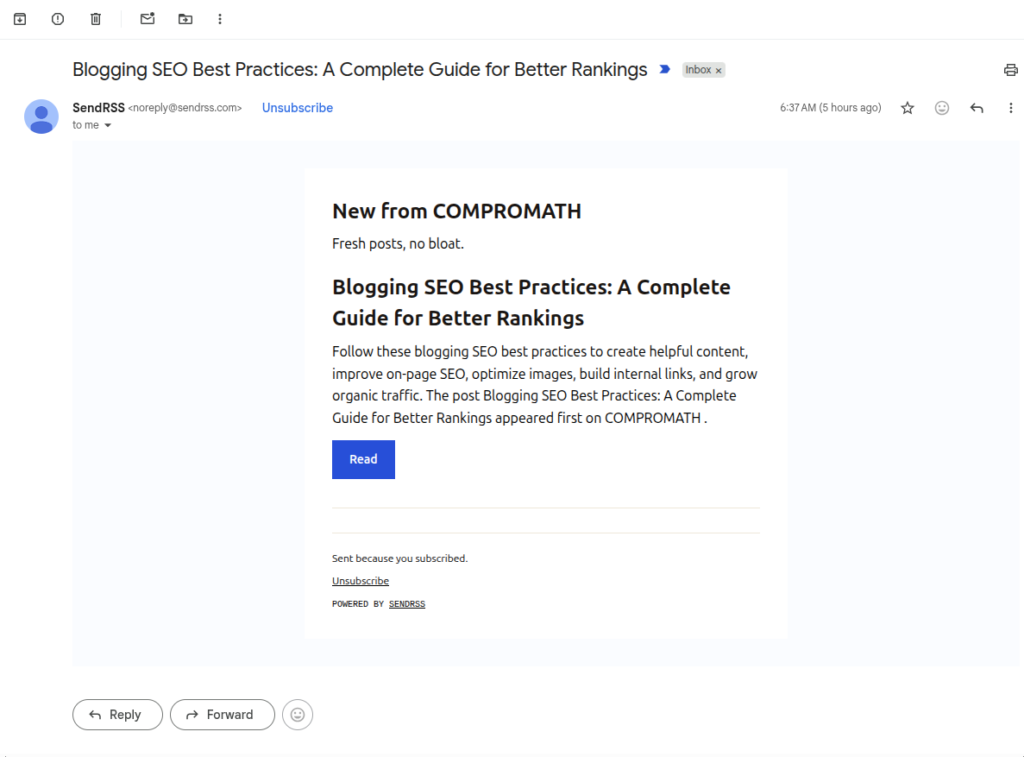
SendRSS follows this approach by sending readers to the original article when they click from the email. The goal is straightforward: use email to bring readers back to the content you already published.
That can be especially useful for bloggers who are trying to build long-term traffic around their own domain.
If you are also working on organic search traffic, take a look at Blogging SEO Best Practices: A Complete Guide for Better Rankings for broader guidance on improving your blog’s search visibility.
Do You Need a WordPress Plugin?
Not necessarily.
If your only goal is to turn your existing RSS feed into automatic email delivery, you may not need to install another large WordPress plugin simply to accomplish that task.
A service that provides the signup widget and handles the RSS-to-email delivery externally can keep the WordPress installation simpler.
This can be useful if you already have several plugins handling SEO, caching, security, forms, analytics, and other parts of your website.
If you are setting up a new WordPress site, you can also review Must-Have WordPress Plugins for New Blog when deciding which functionality genuinely belongs inside WordPress.
What About Ads and Tracking?
This is an important consideration when choosing an RSS-to-email service.
Some services use advertising or tracking as part of their free or low-cost newsletter model. That can mean ads inside your email, open-tracking pixels, wrapped links, or other forms of reader measurement.
If your goal is simply to notify readers about new WordPress posts, those additions may not be necessary.
SendRSS takes a privacy-focused approach. Its RSS-to-email service does not place ads in the letter and does not use open pixels or wrapped links to profile readers. The click goes to the publisher’s article.
For publishers who want a clean, straightforward WordPress feed to email workflow, this can be a useful alternative to a more complicated newsletter platform.
How the Complete WordPress RSS-to-Email Workflow Looks
Once everything is configured, the process becomes remarkably simple:
- Publish: Write and publish a new article in WordPress.
- RSS updates: WordPress adds the new post to its RSS feed.
- Detection: SendRSS checks the connected feed according to your selected cadence.
- Email preparation: The new post is formatted into your selected email layout.
- Delivery: Confirmed subscribers receive the email.
- Website visit: The reader clicks through to the original article on your WordPress site.
After the initial setup, there is no need to manually create a newsletter for every new post.
Is WordPress RSS to Email Right for Your Site?
RSS-to-email works particularly well when your website is primarily a publishing platform.
It can be a good fit if you:
- Publish blog posts regularly.
- Already have an RSS or Atom feed.
- Want readers to receive new posts automatically.
- Prefer sending readers to your own website.
- Do not want to manually create an email for every article.
- Want a simple newsletter signup form on WordPress.
- Prefer an email experience without advertising or reader tracking.
On the other hand, if you need complex marketing automation, elaborate customer journeys, or highly detailed campaign analytics, you may need a broader email marketing platform.
The important thing is to choose the tool around the job you actually need to accomplish.
Final Thoughts
Turning WordPress posts into automatic email updates does not have to mean building a complicated newsletter system.
Your WordPress site already publishes an RSS feed. A suitable RSS-to-email service can connect that feed to a subscriber list, provide the signup form, and automatically deliver new posts as they are published.
For publishers looking for a simple way to auto email new WordPress post updates without adding unnecessary complexity, SendRSS provides a focused approach: connect your existing feed, add a signup widget, let readers confirm, and send new posts back to the articles on your own website.
If that is exactly what you need, try SendRSS and turn your existing WordPress RSS feed into an automatic email newsletter.
Frequently Asked Questions
What is WordPress RSS to email?
WordPress RSS to email automatically turns new posts from a WordPress RSS feed into email updates for confirmed subscribers.
Can I automatically email every new WordPress post?
Yes. An RSS-to-email service can monitor your WordPress feed and send new posts to confirmed subscribers according to the configured delivery schedule.
Do I need a WordPress newsletter plugin?
Not necessarily. If your main requirement is RSS-to-email delivery and subscriber collection, a service such as SendRSS can provide the signup widget and email delivery without requiring a dedicated newsletter plugin for the entire workflow.
Can I add an email signup form to WordPress?
Yes. SendRSS provides a signup widget that can be added to a website in inline, modal, or floating-bar formats.
Will subscribers be sent to my WordPress website?
Yes. The RSS-to-email workflow is designed to send readers from the email to the original article on your website rather than requiring them to read the article on a separate hosted newsletter page.
Does SendRSS add ads to the email?
SendRSS is designed to keep ads out of the letter. It also does not use open pixels or wrapped links for reader profiling.
