Yes, the Steam Deck can output a 4K signal at 60Hz to a compatible external monitor. You need a suitable USB-C dock or adapter, an HDMI 2.0 or better connection, and a monitor that supports 3840 × 2160 at 60Hz. Valve’s official Steam Deck Docking Station supports up to 4K at 60Hz through HDMI 2.0 or DisplayPort 1.4.
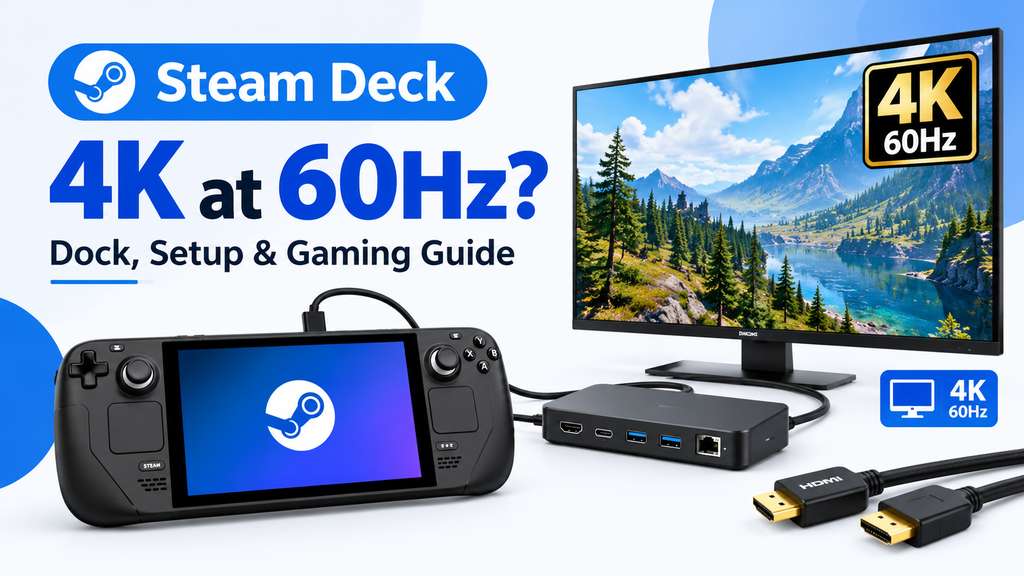
There is one important catch: outputting a 4K desktop signal is not the same as running a game at native 4K resolution. The Steam Deck can display a sharp 4K desktop, browse the web, and play videos at that resolution, but its integrated graphics are not powerful enough to run most modern PC games at native 4K with consistently smooth performance. For gaming, 1080p or 720p rendering with suitable upscaling is usually a more practical choice.
Best products for a Steam Deck 4K monitor setup
You do not need an expensive dock or a premium gaming monitor just to connect your Steam Deck. These options cover the essentials, from a compatible dock and HDMI cable to an external SSD for storing games.
| Product | Recommended option |
|---|---|
| USB-C dock | UGREEN 9-in-1 Steam Deck Docking Station |
| Alternative dock | JSAUX Steam Deck Dock 4K 60Hz |
| 4K monitor | Dell 27-inch 4K UHD Monitor |
| HDMI cable | Cable Matters Certified HDMI 2.0 Cable |
| External storage | Samsung T7 Portable SSD |
Amazon prices and availability vary by region. These links use Amazon product searches rather than fixed listings, so check the exact model, specifications, and seller before ordering.
What you need to connect a Steam Deck to a 4K monitor
A basic setup consists of four things:
- A Steam Deck LCD or OLED.
- A USB-C dock or adapter that supports video output and 4K at 60Hz.
- A compatible 4K monitor or television.
- An HDMI 2.0 or better cable that supports the required resolution and refresh rate.
A dock is particularly useful if you want to connect a keyboard, mouse, controller, Ethernet cable, or external SSD at the same time. Look for USB-C Power Delivery passthrough so you can charge the Deck while using the external display.
You can also use DisplayPort if your dock and monitor support it. Valve recommends DisplayPort 1.4 and HDMI 2.0 or better cables for high-resolution external displays.
4K at 60Hz vs. 4K gaming: What is the difference?
These two terms are often confused, but they describe different parts of the display process.
| Feature | What it means for your Steam Deck |
|---|---|
| 4K output | The Deck sends a 3840 × 2160 signal to your monitor. |
| 60Hz refresh rate | The monitor can refresh its image up to 60 times per second. |
| Native 4K gaming | The game itself renders 3840 × 2160 pixels before displaying the image. |
| 1080p gaming on a 4K monitor | The game renders at 1920 × 1080 and the output is scaled to fit the display. |
| Upscaling | The game renders at a lower resolution and software reconstructs a higher-resolution image. |
For everyday desktop use, 4K output is useful because text and interface elements can look sharp on a large monitor. For games, the GPU has to render far more pixels at 4K than at 1080p.
A 4K image contains four times as many pixels as a 1080p image. That extra workload can substantially reduce frame rates on the Steam Deck, particularly in demanding games.
Which resolution should you use for gaming?
For most Steam Deck owners, the best choice is to keep the external monitor at 4K if desired, but lower the game’s rendering resolution.
4K at 60Hz for desktop use
Ideal for browsing, writing, watching videos, and general desktop work. Text and interface elements can look crisp on a 4K display.
1080p for a balanced gaming experience
A sensible starting point for many games. It offers a good balance between image quality and performance, although demanding titles may need lower settings.
720p for demanding games
Lower rendering resolutions can improve performance when a game struggles at 1080p. Upscaling may help the image look better on a 4K monitor.
Actual performance depends on the game, graphics settings, and whether you use the Steam Deck LCD or OLED. Neither model should be treated as a desktop gaming PC capable of running every modern title at native 4K.
If you want to stream demanding PC games to your Deck instead of rendering them locally, see our guide to streaming PC games to Steam Deck with Moonlight and Sunshine.
How to choose a Steam Deck dock for 4K at 60Hz
A compatible dock matters more than the number of ports it advertises. Check these specifications before purchasing.
| Dock specification | What to look for |
|---|---|
| Video output | HDMI 2.0 or better, or DisplayPort 1.4 |
| Maximum resolution | 3840 × 2160 at 60Hz |
| Power delivery | USB-C PD passthrough compatible with the Deck’s charger |
| USB ports | USB 3.x if you plan to use external storage |
| Ethernet | Gigabit Ethernet for wired networking |
| Compatibility | Explicit support for Steam Deck LCD and OLED |
The official Steam Deck Docking Station is a straightforward option with HDMI 2.0, DisplayPort 1.4, USB ports, and Ethernet. The UGREEN 9-in-1 dock is worth comparing if you want additional connectivity and an adjustable stand. The JSAUX 6-in-1 dock is another option with HDMI output rated for 4K at 60Hz.
You do not need a dock advertised as 4K at 120Hz to achieve 4K at 60Hz. Paying extra for a higher HDMI specification may make sense for another device, but it will not give the Steam Deck the graphics power needed for native 4K gaming.
For a more detailed comparison of affordable docks, read our guide to the best budget Steam Deck docks under $40.
Does the HDMI cable affect 4K 60Hz output?
Yes. Even if your dock supports 4K at 60Hz, the cable and monitor input must support the same mode.
An HDMI 2.0-compatible cable is generally sufficient for standard 4K at 60Hz. A suitable HDMI 2.1 cable can also work, but it is not necessary for this setup.
Consider the following before buying:
- Cable length: A shorter cable can be more reliable, particularly when using inexpensive docks or adapters.
- Monitor input: Check that the specific HDMI port supports 4K at 60Hz. Some displays have ports with different capabilities.
- Adapters: Avoid unnecessary adapters and HDMI switches while troubleshooting.
- Display settings: HDR, color depth, and other features can affect the available output modes.
Valve recommends HDMI 2.0 or better and DisplayPort 1.4-compliant cables for better compatibility with high-resolution displays.
A suitable option is a Cable Matters HDMI cable rated for 4K at 60Hz. Confirm the specifications of the exact cable before ordering.
How to set up the Steam Deck for a 4K monitor
Follow these steps to connect the Deck and select the appropriate display mode.
- Connect the dock’s USB-C cable to your Steam Deck.
- Connect the dock to its power supply, preferably using the Deck’s original charger or a suitable compatible charger.
- Connect the dock to the monitor using HDMI or DisplayPort, then select the correct input on the monitor.
- Open SteamOS settings and navigate to Settings > Display. Select the external monitor’s supported resolution and refresh rate.
- Choose 3840 × 2160 at 60Hz if the option is available and stable.
- For each game, open its properties and select a suitable game resolution, or change the resolution in the game’s own graphics settings.
SteamOS supports external display resolution and refresh-rate selection. Available options depend on the dock, cable, monitor, and software configuration.
One detail worth knowing: in Gaming Mode, the Steam Deck’s built-in screen normally turns off when an external display is connected. This is expected behavior. Desktop Mode offers different display options, including the ability to use multiple displays in supported configurations.
Can you get 60 FPS on a 4K monitor?
You can get 60 FPS in some games while connected to a 4K monitor, but that does not mean the game is rendering at native 4K.
Refresh rate and frame rate are different. A 60Hz monitor can refresh its image 60 times per second, but a game producing 30 FPS still generates only 30 new frames per second. The monitor cannot create the missing frames simply because it supports 60Hz.
Here is a practical way to approach different game types:
| Game type | Suggested starting point |
|---|---|
| Indie and 2D games | Try 1080p or higher if performance allows |
| Older PC games | Start at 1080p and adjust based on performance |
| Competitive or fast-paced games | Try 1080p or 720p with lower graphics settings |
| Demanding AAA games | Start at 720p or 800p, then adjust settings and upscaling |
| Desktop applications | Use 4K at 60Hz |
These are starting points, not guaranteed performance results. A lightweight game may run smoothly at higher resolutions, while a demanding title may struggle even at lower settings.
If you already own a 4K monitor, there is no need to replace it just for Steam Deck gaming. You can use it for desktop work and adjust the resolution per game.
Is an external SSD worth buying for a docked Steam Deck?
An external SSD is useful if you want to keep additional games or files available while the Deck is connected to a monitor. A dock with USB 3.x ports makes connecting a portable SSD convenient.
The Samsung T7 Portable SSD is one option to compare. Choose the capacity that fits your library and budget, and check that your dock provides suitable data-transfer speeds.
Remember that external storage does not improve the Deck’s graphics performance. It provides extra space, not additional GPU power. Also, a drive connected through the dock is less convenient when you want to pick up the Deck and play elsewhere.
If you are considering an internal storage upgrade instead, see our guide to the best 2230 NVMe SSDs for Steam Deck under $100.
Troubleshooting: Why is my Steam Deck stuck at 30Hz?
If your monitor only offers 30Hz at 4K, work through these checks before replacing your hardware.
- Check the monitor input. Make sure the specific port supports 4K at 60Hz.
- Check the dock specifications. Some docks and adapters support only 4K at 30Hz.
- Replace the cable temporarily. Test with a known compatible HDMI 2.0 or better cable.
- Select the refresh rate manually. Open SteamOS display settings and choose 60Hz if the option is available.
- Update the dock firmware. Follow the manufacturer’s instructions if firmware updates are available.
- Test a lower resolution. Try 1080p at 60Hz to help identify whether the problem is related to the display connection.
- Use External Display Safe Mode if necessary. Steam Support documents this option for troubleshooting blank or incompatible external display modes.
If the display remains blank, disconnect the Deck, dock, power supply, and video cable, then reconnect them. Valve also recommends checking the display manual and testing a different cable or input where possible.
Frequently asked questions
Can the Steam Deck OLED output 4K at 60Hz?
Yes. The Steam Deck OLED supports external display output over USB-C, and a compatible dock can provide 4K at 60Hz. The OLED’s built-in screen has a refresh rate of up to 90Hz, but that does not mean every external display mode or game will run at 90 FPS.
Can the Steam Deck run games at native 4K?
It can run some lightweight or older games at higher resolutions, depending on the title. However, native 4K is too demanding to be a realistic target for consistent performance in most modern, graphically intensive games. Lower rendering resolutions are usually the better choice.
Will a 4K 120Hz monitor work with the Steam Deck?
A 4K 120Hz monitor can work with the Deck, but the actual output depends on the dock, connection, and supported display modes. Do not assume that a dock limited to HDMI 2.0 can deliver 4K at 120Hz. For ordinary Steam Deck use, 4K at 60Hz is a sensible target.
Do I need the official Steam Deck dock?
No. Valve states that most USB-C-compliant hubs and docks work with the Deck. A third-party dock can be a good alternative, provided it supports the required video mode and offers suitable power delivery. Thunderbolt and DisplayLink docks are not officially supported.
Is 1440p better than 4K for Steam Deck gaming?
For many games, 1440p can be a useful compromise between image quality and rendering workload. However, 1080p or lower may still be preferable for demanding titles. The best setting depends on the game and your performance target.
Final verdict
Yes, the Steam Deck can drive a 4K monitor at 60Hz, but that does not make it a 4K gaming machine. It is a useful setup for desktop work, browsing, video playback, and playing games at lower resolutions on a larger screen.
For most owners, the best value comes from a reliable 4K 60Hz dock, a compatible HDMI cable, and a monitor they can also use with a laptop or desktop PC. Spend extra on a higher-end dock only if you need its additional ports or features, not because you expect it to improve game frame rates.
For your next step, compare the best budget Steam Deck docks under $40 before buying. You may already have everything needed for a capable docked setup.
