If you have designed a website with HTML, CSS, and JavaScript, you can adapt that design into a Blogger XML theme. However, simply changing the .html extension to .xml is not enough. A Blogger theme needs specific Blogger elements, including sections, widgets, and data tags.
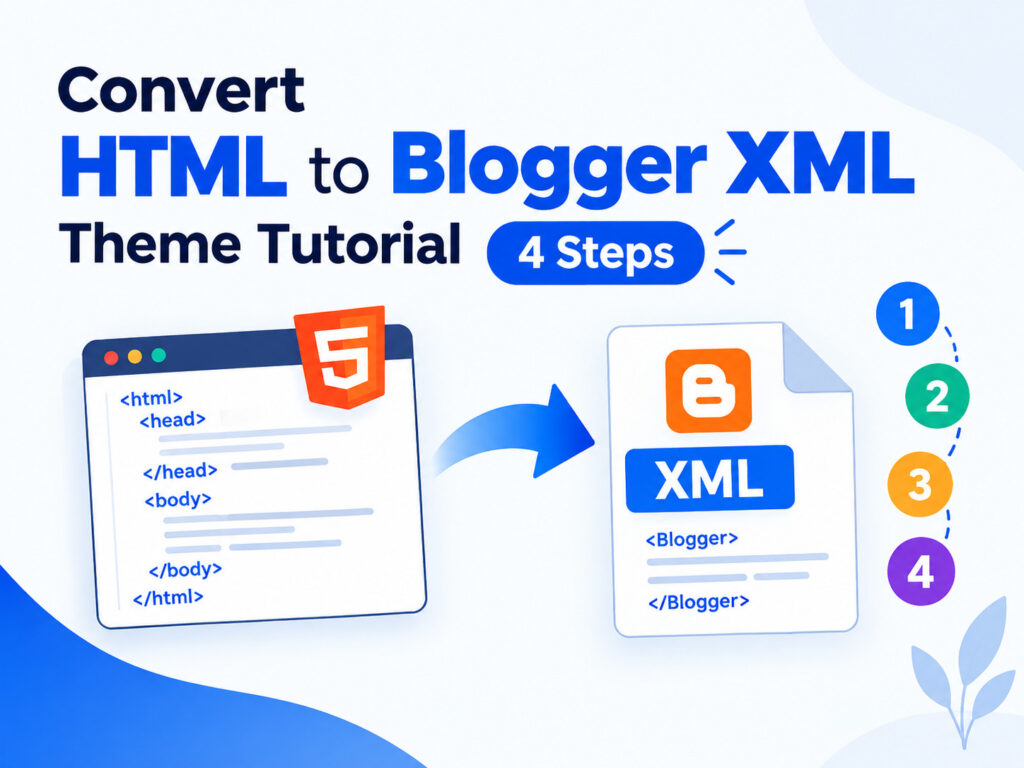
This tutorial shows how to convert a basic HTML template into a Blogger XML theme in four practical steps. It is intended for developers who already have an HTML layout and want to use that design on Blogger.
This tutorial is useful if:
- You have an HTML template and want to use its design on Blogger.
- You have designed your own HTML, CSS, and JavaScript template.
- You want to learn the basic structure of a Blogger XML theme.
- You want to create a custom Blogger layout instead of relying only on Blogger’s built-in theme customizer.
HTML vs Blogger XML Theme
A normal HTML template is designed to display fixed content. Blogger themes need to display dynamic content such as blog titles, post titles, post content, labels, comments, archives, and sidebar gadgets.
That is why a Blogger theme uses special tags such as <b:section>, <b:widget>, and <data:blog.title/>. These elements tell Blogger where editable sections and dynamic blog content should appear.
For example, an HTML template might contain:
<div class="sidebar">
    <h2>Sidebar</h2>
</div>
In a Blogger theme, that area can become a section where Blogger widgets can be added:
<b:section class='sidebar' id='sidebar' showaddelement='yes'>
</b:section>
Before Converting Your HTML Template
Make a backup copy of your original HTML template before modifying it. Keep the original HTML, CSS, JavaScript, images, fonts, and other assets in a separate folder so you can return to the original version if something goes wrong.
Also check your template for external files. Blogger themes are stored as a single theme document, but your theme can still reference external CSS, JavaScript, fonts, images, and other resources. You do not need to put every external resource inside the XML file.
4 Steps to Convert HTML Template into Blogger XML Theme
Step 1: Prepare Your HTML Template
Open your HTML template in a code editor such as Visual Studio Code. Before adding Blogger-specific code, make sure the original template works correctly as a normal HTML page.
- Check that the HTML structure is valid.
- Make sure the CSS is working correctly.
- Check images, fonts, JavaScript, and external resources.
- Remove unnecessary demo content that should later be generated by Blogger.
Save a copy of the original file before you begin. You can then create a new file such as my-blogger-theme.xml for the Blogger version.
Step 2: Add the Blogger XML Structure
Now convert the basic HTML document structure into a Blogger-compatible theme structure. The exact namespaces and elements can vary between Blogger themes, so it is better to start from a working Blogger theme structure rather than assume that changing the file extension is sufficient.
A basic structure can look like this:
<?xml version="1.0" encoding="UTF-8" ?>
<!DOCTYPE html>
<html xmlns='http://www.w3.org/1999/xhtml'
      xmlns:b='http://www.google.com/2005/gml/b'
      xmlns:data='http://www.google.com/2005/gml/data'
      xmlns:expr='http://www.google.com/2005/gml/expr'>

<head>
  <title><data:blog.pageTitle/></title>

  <b:skin><![CDATA[
    /* Your CSS goes here */
  ]]></b:skin>
</head>

<body>

  <b:section class='main' id='main' showaddelement='yes'>
    <b:widget id='Blog1' locked='true' title='Blog Posts' type='Blog'/>
  </b:section>

</body>
</html>
The important part is not the exact sample above, but the role of the Blogger elements. The b:skin element contains the theme CSS, while b:section and b:widget allow Blogger to manage parts of the page dynamically.
Step 3: Convert HTML Areas into Blogger Sections and Widgets
This is the most important part of converting an HTML template into a Blogger theme.
In a normal HTML template, you may have separate containers for the header, content, sidebar, and footer. In Blogger, these areas can be turned into sections so that widgets can be managed from the Blogger Layout interface.
What is a Blogger section?
A section defines an area of the theme where one or more Blogger widgets can be placed. Common sections include the header, main content area, sidebar, and footer.
<b:section class='section_name'
            id='section_name'
            maxwidgets='1'
            showaddelement='yes'>
</b:section>
The id should be unique within the theme. The class can be used for styling, while attributes such as maxwidgets and showaddelement control how the section behaves in Blogger’s layout system.
Header section
If your HTML template has a header or logo area, you can create a Blogger header section there. A simple example is:
<b:section class='header'
            id='header'
            maxwidgets='1'
            showaddelement='no'>
</b:section>
Main blog section
The main content area needs a Blog widget so Blogger can display your posts. For example:
<b:section class='main'
            id='main'
            showaddelement='yes'>
  <b:widget id='Blog1'
            locked='true'
            title='Blog Posts'
            type='Blog'/>
</b:section>
The Blog widget is responsible for the dynamic blog content. You should not replace the post area with hard-coded sample articles if you want Blogger to display your actual posts.
Sidebar section
For a sidebar, create a separate section:
<b:section class='sidebar'
            id='sidebar'
            showaddelement='yes'>
</b:section>
Footer section
You can use the same approach for the footer:
<b:section class='footer'
            id='footer'
            showaddelement='yes'>
</b:section>
You can create additional sections when your design needs them. The important thing is to give each section a unique ID and place it in the appropriate part of your HTML layout.
Step 4: Move Your CSS, Test the XML, and Install the Theme
After adding the Blogger structure, move your template’s CSS into the b:skin section if you want the CSS to be part of the Blogger theme.
<b:skin><![CDATA[
/* Paste your CSS here */
]]></b:skin>
Do not paste CSS blindly. Check for characters and syntax that can interfere with XML parsing. If you keep CSS in an external stylesheet, make sure the stylesheet is loaded over HTTPS and remains accessible.
Next, check the theme carefully for unclosed HTML/XML elements, duplicate IDs, invalid attributes, and incorrectly written Blogger tags. XML is stricter than ordinary HTML, so a small syntax problem can prevent the theme from being saved.
How to Install the Converted Blogger XML Theme
Before installing the new theme on an existing blog, back up your current Blogger theme. Blogger provides a backup option from the Theme section, which lets you download a copy of the current theme.
To edit the theme code directly, open your Blogger dashboard, select Theme, open the additional options under your current theme, and choose Edit HTML. You can then replace the existing theme code with your converted XML and save it.
If your Blogger interface provides the Restore option for uploading an XML theme file, you can also use the XML file directly through that theme-management option. Always keep your previous theme backup before replacing it.
Why Simply Renaming HTML to XML Does Not Work
This is one of the most common misunderstandings when converting an HTML template to Blogger.
Changing:
my-template.htmlto:
my-template.xmldoes not automatically turn an HTML website into a Blogger theme. The file must contain valid XML and Blogger’s theme markup. Dynamic areas such as blog posts and gadgets also need Blogger widgets and data tags.
Think of the conversion as adapting the HTML design to Blogger’s template system, not simply changing the file extension.
Common Problems When Converting HTML to Blogger XML
1. The theme cannot be saved
This usually indicates a problem with the XML or Blogger-specific markup. Check for missing closing tags, invalid nesting, duplicate IDs, malformed attributes, and incorrectly written Blogger elements.
2. The blog content does not appear
If the HTML design contains only static sample content, Blogger has no reason to replace that content with your actual posts. Make sure your main area contains a Blogger Blog widget and that your theme uses the appropriate Blogger data tags.
3. The sidebar does not appear in Layout
Check whether the sidebar is defined as a b:section. A normal HTML div is not automatically treated as an editable Blogger section.
4. CSS stops working
Check the CSS location, selectors, URLs, and XML escaping. If your stylesheet or other resources use HTTP URLs, replace them with HTTPS where the resource supports it. Mixed-content resources can cause problems when your blog is served over HTTPS.
5. The design works in HTML but not in Blogger
This is normal during the conversion process. A standalone HTML template controls its own content, while a Blogger theme has to work with Blogger’s generated content and layout system. Test the homepage, individual posts, static pages, labels, archives, comments, sidebar gadgets, navigation, and mobile layout after the conversion.
What to Customize After Converting the Theme
Getting the XML theme to install is only the first stage. A production Blogger theme should also be customized for search engines, usability, and performance.
- Customize the Blogger meta tags.
- Check and customize structured data.
- Make the layout responsive on mobile devices.
- Optimize images and external resources.
- Check navigation, headings, internal links, and accessibility.
- Test page loading and remove unnecessary JavaScript and CSS.
If you want to understand the Blogger theme system in more detail, see the tutorial on how to create a Blogger template. It explains the relationship between Blogger sections, widgets, and other template elements.
HTML to Blogger XML Conversion Checklist
- Back up your original HTML template.
- Create a separate XML copy for the Blogger version.
- Add the required Blogger XML namespaces.
- Move your CSS into
b:skinor keep it in a valid external stylesheet. - Convert header, main, sidebar, and footer areas into Blogger sections where appropriate.
- Add the Blog widget to the main content section.
- Replace static content with Blogger data tags where dynamic content is required.
- Check XML syntax before installing the theme.
- Back up your existing Blogger theme before replacing it.
- Test the finished theme on different page types and screen sizes.
Final Thoughts
Converting HTML to a Blogger XML theme is mainly about connecting your existing design to Blogger’s theme system. Your HTML and CSS provide the visual structure, while Blogger sections, widgets, and data tags provide the dynamic content.
If you understand the difference between a normal HTML layout and a Blogger theme, the conversion becomes much easier. Start with a working HTML design, add the Blogger structure gradually, test each section, and keep a backup before making major changes.
You can also learn how to convert a WordPress theme to Blogger XML if your starting point is a WordPress design.
Video tutorial: If you want a more detailed guide to Blogger theme development, you can also check the Google Blogger Theme Development course on Udemy.

[…] Der beste Weg ist deshalb dieser. Die gewahlte HTML-Vorlage manuell in eine Blogger-XML-Datei umwandeln. […]
[…] L idea migliore e questa. Convertire a mano il template HTML scelto in un file XML di Blogger. […]