Moving a Blogger site to WordPress is more than exporting your posts and importing an XML file. A small blog with a few dozen posts may migrate without much trouble, but larger Blogger sites can expose problems that are easy to miss during a basic migration.
Images may fail to import correctly. Comments can disappear. Some URLs may change. Large XML files can become difficult to process, and manually fixing hundreds or thousands of posts can take much longer than expected.
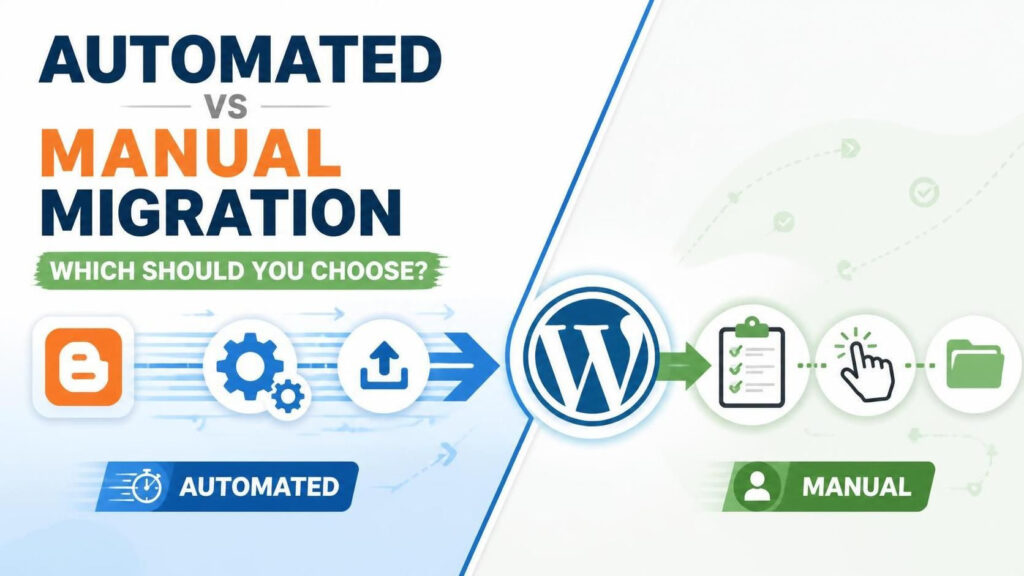
That leaves two common approaches: manual Blogger to WordPress migration or an automated Blogger to WordPress migration tool.
The right choice depends on the size of your site, how much content you have, and how important it is to preserve your existing URLs, images, comments, and search traffic.
What Is Manual Blogger to WordPress Migration?
The traditional approach starts with Blogger’s export function.
You download a Blogger backup, usually as an XML file, install WordPress on your new hosting account, and use WordPress’s importer or another migration method to bring the content across.
The basic process looks simple:
- Export your Blogger content.
- Download the XML backup.
- Set up WordPress.
- Import the Blogger file.
- Check posts and pages.
- Move or repair images.
- Fix URLs and internal links.
- Configure redirects.
- Test the migrated website.
For a small blog, this can work reasonably well.
The problem appears when the archive becomes large or contains years of content, thousands of images, extensive comments, and complicated URL structures.
The Problem With Manual XML Migration
A Blogger XML file contains important information about your blog, but moving that data into WordPress is not always a simple one-click operation.
Large files can create timeouts
One of the biggest challenges with a large Blogger archive is processing the XML file.
Depending on the server, PHP configuration, hosting resources, importer and file size, the process may time out before everything is imported.
You might end up with some posts in WordPress while the remaining content has not been transferred.
Trying the import again may create duplicates or require additional cleanup.
This is one reason the question how to migrate large Blogger site becomes more complicated than simply asking how to import a Blogger XML file.
Images may not be properly localized
Posts can appear correctly in WordPress while their images still depend on the old Blogger image URLs.
That creates another problem.
If an image fails to load, changes location, or is not properly copied into WordPress, older articles can end up with broken media.
A proper migration should bring those images into the WordPress Media Library and update the content to use the new URLs.
Comments may require extra work
Your old Blogger comments are part of your site’s history.
A basic post import does not always provide the same level of comment migration that site owners expect. Depending on the migration method and archive, comments can be missing, incomplete, or disconnected from the correct posts.
For a site with years of reader discussions, manually recovering and matching those comments can become a major project.
URLs need careful attention
SEO is one of the biggest concerns when moving from Blogger to WordPress.
Your old Blogger URLs may not exactly match the permalink structure you choose in WordPress.
For example, an old Blogger post might use a URL such as:
https://example.blogspot.com/2024/05/my-blog-post.htmlYour WordPress version could use:
https://example.com/my-blog-post/If the old URL stops working without a proper redirect, search engines and visitors can encounter a 404 page.
Backlinks pointing to the old URL can also stop reaching the new article.
That is why migration is not finished when the posts appear in the WordPress dashboard.
What Is Automated Blogger to WordPress Migration?
An automated migration system handles much of the repetitive work involved in moving your archive.
Instead of manually importing content and then repairing individual problems, a specialized migration tool can process the archive, transfer content, localize images and apply migration rules as part of the same workflow.
For larger sites, this approach can significantly reduce the amount of manual checking required.
A modern automated Blogger to WordPress migration tool can be designed to handle several parts of the migration together:
- Posts
- Pages
- Images
- Comments
- Categories
- Authors
- Permalinks
- 301 redirects
- Internal content references
The important difference is not simply automation for its own sake. It is the ability to handle the relationships between different pieces of your old site.
Automated vs. Manual Blogger Migration
Here is a practical comparison.
| Feature | Manual Migration | Automated Migration |
|---|---|---|
| Blogger XML export | Yes | Yes |
| Post migration | Manual/importer dependent | Automated |
| Large archives | Can be difficult | Designed for larger transfers |
| Image localization | May require additional work | Automated with supported tools |
| Comments | Can require cleanup | Can be synchronized automatically |
| URL mapping | Manual configuration | Can be automated |
| 301 redirects | Usually configured separately | Can be generated as part of migration |
| Progress tracking | Limited | Usually available |
| Troubleshooting | Often manual | Migration workflow handles many tasks |
| Best for | Small/simple blogs | Larger or more complex archives |
Neither approach is automatically right for every Blogger site.
If you have a small personal blog with limited content, manual migration may be perfectly reasonable.
If your site has hundreds or thousands of posts, years of comments and a large image archive, automation becomes much more useful.
When Manual Migration Makes Sense
Manual migration can be a practical choice when your Blogger site is relatively small.
For example, suppose you have 30 posts, a handful of pages and only a few images per article.
You can export your Blogger archive, import it into WordPress, check the content and configure your redirects.
In that situation, spending time learning a migration tool may not provide much additional value.
Manual migration also makes sense if you want complete control over every article and are comfortable working with WordPress settings, XML files, redirects and media.
The key is to understand what you are taking responsibility for.
You need to check the migrated content rather than assuming the import was successful simply because WordPress reports that the import completed.
When Automated Migration Makes More Sense
Automation becomes more attractive as the archive grows.
Consider a Blogger site with:
- 1,000+ posts
- Several years of publishing history
- Thousands of images
- Hundreds of comments
- Multiple authors
- Existing search traffic
- Backlinks from other websites
- A large number of indexed URLs
Manually checking every post after migration can consume a considerable amount of time.
This is where a specialized migration workflow can help.
Instead of treating the migration as one giant import operation, the system can handle the content transfer and associated tasks in a more structured way.
For site owners searching for the best Blogger to WordPress importer plugin, it is worth looking beyond the basic ability to import posts.
The important questions are:
Does it handle images?
Does it preserve comments?
Can it deal with large archives?
Can it map old URLs to new URLs?
Does it provide a way to monitor the migration?
Does it help preserve SEO?
Those features matter more than simply having an Import button in WordPress.
A Better Option for Large Blogger Archives
For larger migrations, cloud-based migration can remove some of the limitations associated with processing everything directly through a WordPress hosting environment.
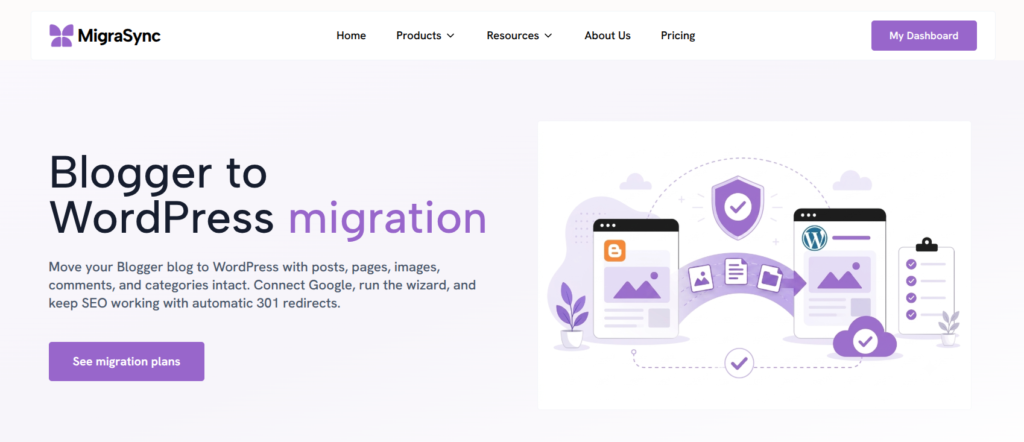
MigraSync is a cloud-based Blogger to WordPress migration tool designed for this type of move.
MigraSync works with a Blogger backup file rather than requiring direct access to your Blogger account.
You can obtain your Blogger archive through Google Takeout or export it from Blogger. The backup can be a compressed Google Takeout file, XML file or Atom file supported by the migration wizard.
You then upload the backup to MigraSync and start the migration.
The workflow is built around moving the important parts of the site together.
1. Connect and prepare your archive
Start with your Blogger backup.
Instead of handing over your entire Blogger account, you provide the archive file to the migration wizard.
This can be useful when you want to keep the migration process focused on a specific backup of your site.
2. Configure your migration
The migration wizard allows you to configure how Blogger content should be mapped to WordPress.
You can map Blogger authors to WordPress users, configure tags and customize the WordPress permalink structure.
This step is particularly important for SEO because your new WordPress URLs need to correspond correctly with the old Blogger URLs.
3. Run the transfer
Once the settings are configured, start the transfer.
MigraSync synchronizes the content and provides progress updates while the migration runs.
The goal is to avoid turning a large archive into a collection of manual tasks that have to be completed one post at a time.
Image Localization Is an Important Part of Migration
Images deserve special attention during a Blogger migration.
Simply seeing an image inside a WordPress post does not necessarily mean the image has been properly migrated.
With MigraSync, images are imported into the WordPress Media Library and post content is updated to use the new local WordPress URLs.
This matters for both reliability and long-term content management.
Your migrated articles should not remain dependent on an old Blogger image location when the goal is to make WordPress your new publishing platform.
What About Blogger Comments?
Comments are another area where migration tools can save considerable manual work.
If your Blogger site has years of discussions, manually rebuilding those conversations is not realistic.
MigraSync’s comment synchronization is designed to move historical user replies and conversations and connect them with their matching WordPress posts.
That means your older articles can retain the discussion history that existed on Blogger.
For established blogs, this can be just as important as moving the posts themselves.
Protecting SEO During the Migration
Moving to WordPress should not mean abandoning the URLs that have already earned search visibility.
A migration can change your URL structure, but the old URLs should still lead visitors and search engines to the correct new pages.
MigraSync automatically creates 301 redirects that map old Blogger URLs to the new WordPress permalinks.
This helps preserve the connection between:
- Old indexed URLs
- Existing backlinks
- Search engine references
- New WordPress URLs
Redirects are not a guarantee that rankings will remain unchanged. Search engines still need to crawl and process the new URLs.
However, correctly mapping old URLs to their corresponding new pages is an important part of a technically sound migration.
For a more detailed walkthrough, see our existing guide:
How to Migrate from Blogger to WordPress Without Losing Traffic
Do You Need a Special Worker Script for a Large Site?
Some developers handle large migrations using custom scripts or worker-based processes.
This can be effective when you have development experience and need complete control over the migration.
A custom worker can process content in batches rather than attempting to handle an entire archive in a single web request.
But there is a trade-off.
You become responsible for building and maintaining the migration logic, handling failed records, processing images, matching comments, mapping URLs and testing the results.
For a one-time Blogger migration, developing and maintaining a custom system may be unnecessary.
A specialized migration service can provide many of the same advantages without requiring you to build the infrastructure yourself.
Automated Does Not Mean You Should Skip Testing
Automation reduces manual work. It does not eliminate the need for checking the finished website.
After migrating, review important areas of your WordPress site.
Check:
- Homepage
- Main navigation
- Important posts
- Pages
- Categories
- Images
- Comments
- Internal links
- Permalinks
- 301 redirects
- XML sitemap
- Search Console coverage
- Mobile layout
Pay particular attention to your most important articles.
If your site has hundreds or thousands of posts, you do not necessarily need to manually inspect every article. Start with your most visited pages, highest-value content and older posts that receive search traffic or backlinks.
So, Which Should You Choose?
The answer depends largely on the size and complexity of your Blogger site.
Choose manual migration if:
- Your blog is small.
- You have relatively few posts.
- You have limited images and comments.
- You are comfortable checking URLs and redirects yourself.
- You want maximum hands-on control.
Consider automated migration if:
- Your Blogger archive is large.
- You have hundreds or thousands of posts.
- Your site contains many images.
- You have years of comments.
- Organic traffic is important to the business.
- You have many old URLs and backlinks.
- You want to reduce repetitive migration work.
For a small Blogger blog, manual migration can be enough.
For a large archive, the migration should be treated as a data transfer and SEO project rather than simply an XML import.
A cloud-based solution such as MigraSync can make that process more manageable by handling posts, pages, images, comments and URL redirects through a dedicated migration workflow.
If your Blogger site has become too large to comfortably migrate by hand, you can learn more about the process here:
MigraSync Blogger to WordPress Migration
The important thing is not whether your migration is manual or automated. What matters is whether the method you choose can move the content you actually have while keeping your old URLs, media, comments and search visibility properly accounted for.
