Moonlight and Sunshine can turn your Steam Deck into a powerful handheld for streaming PC games from another computer. When the setup is working properly, games can feel surprisingly close to playing locally. But if the network is unstable, you may see blurry video, input delay, stuttering, dropped frames, or sudden quality changes.
In many cases, the problem is not your gaming PC or Steam Deck. The wireless network between them is the weak point. A busy 2.4GHz network, an old router, weak signal, interference, or a PC connected over Wi-Fi can make Moonlight streaming much less consistent.
For an in-home setup, a good Wi-Fi 6 router can provide the faster and more consistent local connection that Moonlight and Sunshine need. However, maximum internet speed is not the main goal. Sunshine’s documentation points out that real-time game streaming depends heavily on network stability, low latency, low variance, and minimal packet loss.
Best Wi-Fi 6 Routers and Ethernet Accessories for Moonlight
These are the networking products worth considering if you are building or upgrading a Moonlight and Sunshine setup. The two routers are both AX3000-class Wi-Fi 6 models, while Ethernet accessories can help remove Wi-Fi from the most important part of the connection.
| Product | Best For | Why Consider It |
|---|---|---|
| TP-Link Archer AX55 | Budget Moonlight setup | Wi-Fi 6, AX3000, 5GHz up to 2402 Mbps, 4 Gigabit LAN ports |
| ASUS RT-AX58U | Gaming-focused home network | AX3000 Wi-Fi 6, 160MHz support, OFDMA, 4 Gigabit LAN ports |
| Cat6 Flat Ethernet Cable | Wired PC connection | Useful for connecting the Sunshine PC directly to the router |
| USB-C Ethernet Adapter | Wired Steam Deck connection | Lets compatible Steam Deck setups use a wired network connection |
Note: Product specifications and prices can change. The Amazon links above are affiliate links, so COMPROMATH may earn a commission from qualifying purchases at no additional cost to you.
Why Your Router Matters for Moonlight Streaming
Moonlight does not simply download a game like a normal Steam installation. Sunshine runs the game on your PC, encodes the video, and sends the resulting stream across your local network to Moonlight on the Steam Deck. Your controller input then travels back to the PC.
That makes network consistency important. A connection that is fast enough for downloading a large game is not automatically good for interactive game streaming. Short periods of congestion or packet loss can be much more noticeable during gameplay than during a normal file download.
Moonlight’s documentation also distinguishes normal network latency from latency variation, commonly called jitter. Higher latency variance means packets are not arriving with consistent timing, which can contribute to an uneven streaming experience.
TP-Link Archer AX55: Best Budget Router for Moonlight Streaming
If you are looking for a best budget router for Moonlight streaming, the TP-Link Archer AX55 is a sensible starting point. It is an AX3000 dual-band Wi-Fi 6 router with up to 2402 Mbps on 5GHz and up to 574 Mbps on 2.4GHz under the manufacturer’s specifications. It also has four Gigabit LAN ports, giving you the option of connecting the gaming PC by Ethernet.
The AX55 also supports 160MHz channels and OFDMA. These features are designed to improve wireless capacity and efficiency, which can be useful when several devices are using your home network at the same time.
For a typical Steam Deck and gaming PC setup, the important part is not the advertised AX3000 number by itself. Use the 5GHz network for the Steam Deck when possible, keep the router reasonably close to the Deck, and connect the Sunshine PC to one of the router’s Gigabit LAN ports.
Check the TP-Link Archer AX55 on Amazon
ASUS RT-AX58U: Another Strong Wi-Fi 6 Option
The ASUS RT-AX58U is another AX3000 Wi-Fi 6 router that fits a Moonlight streaming setup. ASUS lists up to 2402 Mbps on 5GHz and 574 Mbps on 2.4GHz, along with 160MHz channel support, OFDMA and four Gigabit LAN ports.
Its four Gigabit LAN ports make it particularly useful if you want to wire your gaming PC, Steam Deck dock, or other devices directly to the router. ASUS also supports AiMesh, which can be useful if you later need to expand coverage around a larger home.
There is no requirement to buy an ASUS router specifically for Moonlight. The important characteristics are a reliable 5GHz connection, enough LAN capacity for wired devices, and stable performance under your home’s network load.
Check the ASUS RT-AX58U on Amazon
Wi-Fi 6 Router Setup for Moonlight and Sunshine
Buying a new router will not automatically eliminate streaming lag. How you connect the devices can make just as much difference as the router itself.
1. Connect the gaming PC with Ethernet
This is one of the simplest improvements you can make. Connect the PC running Sunshine directly to the router using a Gigabit Ethernet cable. This removes the PC’s Wi-Fi connection from the streaming path and gives Sunshine a more consistent connection to the router.
A Cat6 cable is more than sufficient for a typical Gigabit home network. You do not need an expensive specialty gaming Ethernet cable for Moonlight.
See Cat6 Ethernet cables and USB-C Ethernet adapters on Amazon
2. Put the Steam Deck on 5GHz Wi-Fi
For a normal in-home Moonlight setup, connect the Steam Deck to the router’s 5GHz network rather than 2.4GHz when the signal is strong enough. The 5GHz band generally provides more capacity for this type of high-bitrate local streaming, although range and interference still depend on your home.
If your router combines the 2.4GHz and 5GHz networks under one name, you can test both bands to see which gives your Steam Deck the more stable connection in its usual gaming location.
3. Avoid placing the router behind furniture
Router placement matters. Keep it in an open location rather than inside a cabinet, behind a television, or close to large objects that can interfere with wireless coverage. If your Steam Deck is normally used in another room, test the signal from the actual place where you play rather than assuming the connection is strong enough.
4. Reduce heavy network traffic
A large download, cloud backup, 4K video stream, or other heavy network activity can compete with Moonlight. If your router supports QoS or bandwidth management, it may be worth testing those features when several people are using the network.
Steam Deck In-Home Streaming Lag Fix: What to Check First
If you are searching for a Steam Deck in-home streaming lag fix, do not replace the router immediately. First determine where the problem is coming from.
- Connect the Sunshine PC directly to the router with Ethernet.
- Connect the Steam Deck to the 5GHz Wi-Fi network.
- Move the router to a more open location.
- Reduce downloads and other heavy network traffic while testing.
- Lower Moonlight’s streaming bitrate and check whether the stuttering improves.
- Test a different 5GHz channel if your area has significant wireless congestion.
- Update the router firmware and networking drivers on the PC.
Sunshine recommends checking network performance with tools such as iPerf3. Its troubleshooting documentation emphasizes that stability and consistency are more important than raw bandwidth for real-time game streaming, and specifically recommends watching packet loss and jitter during testing.
Wi-Fi 6 Router or Ethernet for Moonlight?
If you can use Ethernet for the gaming PC, do it. A wired PC connection is usually the easiest way to remove one potential source of wireless variability.
The Steam Deck is different because portability is one of its main advantages. Keeping the Deck on 5GHz Wi-Fi is perfectly reasonable when the signal is strong and the network is stable. If you mostly play near a dock, however, a USB-C Ethernet adapter can give you the option of using a completely wired connection.
For many homes, the ideal arrangement is therefore simple: gaming PC connected to the router by Ethernet, Steam Deck connected over 5GHz Wi-Fi.
Best Network Layout for Moonlight + Sunshine
A simple layout works well for most in-home streaming setups:
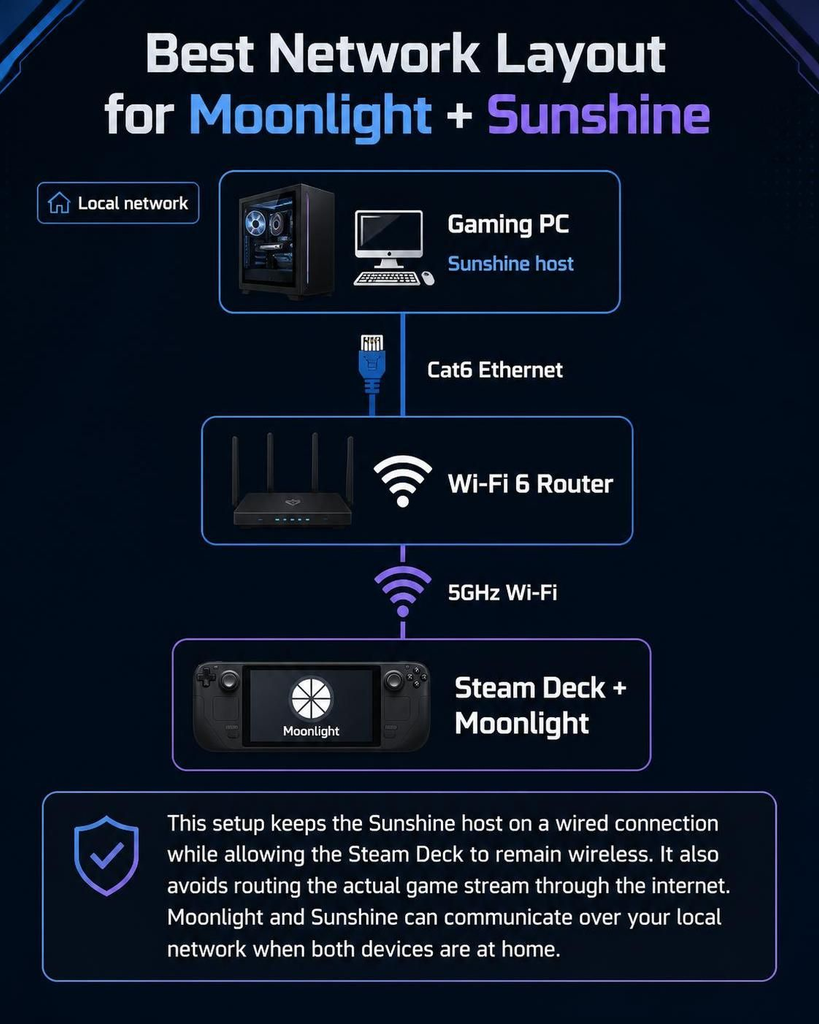
This setup keeps the Sunshine host on a wired connection while allowing the Steam Deck to remain wireless. It also avoids routing the actual game stream through the internet. Moonlight and Sunshine can communicate over your local network when both devices are at home.
Do You Need Wi-Fi 6 for Moonlight?
No. Moonlight does not require Wi-Fi 6. A good Wi-Fi 5 router can also provide a smooth experience. Wi-Fi 6 becomes more interesting when you have multiple devices competing for wireless capacity or when you are upgrading an older router anyway.
The bigger mistake is choosing a router based only on its advertised maximum speed. For Moonlight, a stable connection with low latency and low jitter is more useful than a huge theoretical throughput number that your Steam Deck cannot use.
Should You Upgrade Your Router for Moonlight?
If your existing router provides a strong 5GHz connection and your Sunshine PC is already connected by Ethernet, a new router may not make a dramatic difference. Test the current network first.
On the other hand, an older router, congested wireless network, weak 5GHz coverage, or inconsistent connection can make a Wi-Fi 6 upgrade worthwhile. The TP-Link Archer AX55 and ASUS RT-AX58U both provide AX3000-class Wi-Fi 6 with Gigabit Ethernet, making them practical options for a typical home Moonlight setup.
If you are still setting up the software side, see our guide on how to stream PC games to Steam Deck with Moonlight and Sunshine. Once Sunshine and Moonlight are configured, improving the local network is usually the next step when you encounter stuttering or input delay.
Final Recommendation
You do not need an expensive gaming router to get good Moonlight performance. Start with the network you already have, connect the Sunshine PC by Ethernet, use 5GHz Wi-Fi on the Steam Deck, and test for packet loss and jitter before spending money.
If your current router is old or struggles with multiple wireless devices, the TP-Link Archer AX55 is a practical budget-focused Wi-Fi 6 upgrade. The ASUS RT-AX58U is another AX3000 option with 160MHz support, OFDMA, Gigabit LAN ports, and AiMesh compatibility.
For the most consistent setup, focus less on chasing the highest advertised Wi-Fi speed and more on creating a clean local path between Sunshine and Moonlight. A wired gaming PC, strong 5GHz signal, sensible bitrate, and a stable router can do more for your Steam Deck streaming experience than buying the most expensive router available.
