Installing Windows on a Steam Deck gives you access to Windows-only games, applications, launchers, drivers, and desktop software that may not work natively in SteamOS.
But there is an important decision before you install it: where should Windows live?
You have two practical storage options. You can install Windows on the Steam Deck’s internal SSD, or use a microSD card to keep Windows separate from the internal SteamOS installation.
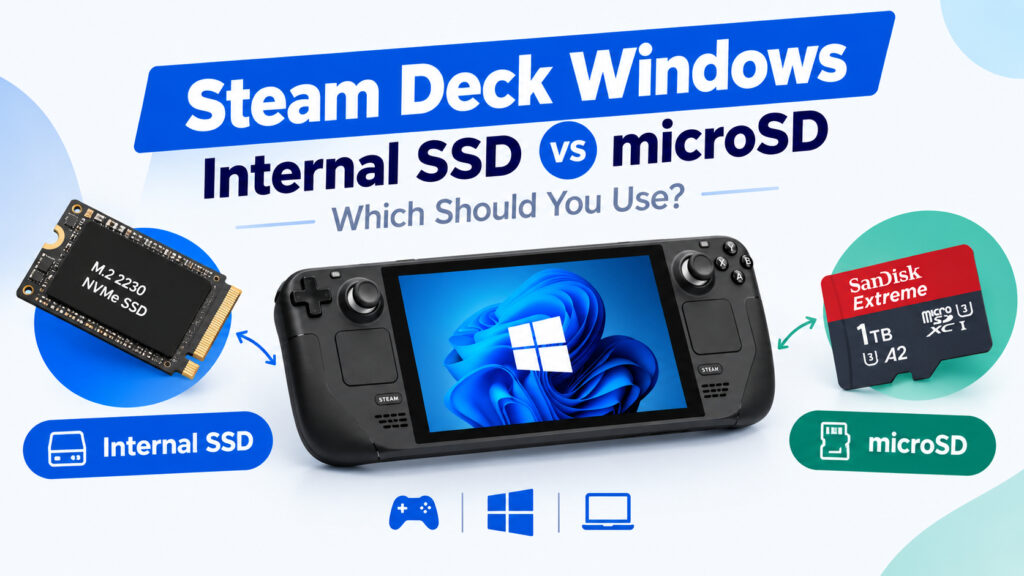
The right choice depends on how often you plan to use Windows.
Internal SSD: better for permanent, regular Windows use.
microSD: better for experimentation, occasional use, or keeping Windows completely separate from the internal SteamOS installation.
Internal SSD vs microSD for Steam Deck Windows
| Feature | Internal SSD | microSD |
|---|---|---|
| Windows performance | Faster | Slower |
| Best for | Regular Windows use | Testing and occasional use |
| Installation | More involved | Easier to keep separate |
| SteamOS separation | Less separation | Complete physical separation |
| Portability | Windows stays with the Deck | Card can be removed |
| Storage durability | Better suited to heavy use | More wear-sensitive |
| Upgrade difficulty | Requires opening Deck | Insert/remove card |
| Cost | Higher | Lower |
| Best choice for daily Windows | Yes | No |
The Steam Deck uses an internal M.2 2230 NVMe SSD and also has a microSD card slot. Valve officially supports UHS-I microSD cards, while faster UHS-II and UHS-III cards do not gain their higher transfer speeds through the Deck’s reader.
Why an Internal SSD Is Better for Regular Windows
If Windows will be your second operating system that you use frequently, the internal SSD is the better fit.
An NVMe SSD provides substantially more storage performance than a microSD card. That matters when Windows is constantly reading and writing system files, installing applications, downloading updates, launching games, and handling large files.
The Steam Deck’s internal storage uses the compact M.2 2230 NVMe form factor. A standard desktop M.2 2280 SSD will not simply fit inside the Deck.
Windows feels more natural on an SSD
Windows performs many small background operations that are not obvious when using a desktop PC. Updates, temporary files, application installations, page files, browser caches, and game launchers all generate storage activity.
An internal NVMe drive is better suited to this type of workload.
This becomes particularly important if you plan to use Windows for:
- Steam games
- Xbox PC games
- Game Pass
- Microsoft Store applications
- Adobe or creative applications
- Desktop productivity
- Game launchers
- Regular Windows updates
- Large file transfers
If Windows is something you expect to use several times every week, installing it on faster internal storage makes more sense than treating a microSD card as your primary Windows drive.
The Best Internal SSD Size for Steam Deck Windows
For a Windows installation, 1TB is a practical starting point.
Windows itself does not need an enormous amount of space, but the operating system is only part of the equation. Game launchers, applications, updates, recovery files, and games can quickly consume available capacity.
A 512GB SSD can work if Windows is being used for a limited number of applications or games.
A 1TB drive gives you considerably more flexibility.
A 2TB SSD is worth considering if you want Windows to become a serious second operating system rather than something you occasionally boot.
What SSD should you buy?
Look specifically for:
- M.2 2230 form factor
- NVMe interface
- Single-sided design where possible
- Reputable manufacturer
- 1TB or 2TB capacity
- Reasonable power consumption
Do not buy a normal 2280 desktop NVMe drive simply because it has a higher advertised speed. The physical size is wrong for the Steam Deck.
The WD_BLACK SN770M is one example of a 2230 NVMe SSD designed for compact devices. Other 2230 options from manufacturers such as Sabrent are also available.
Check WD_BLACK SN770M 2230 SSD options on Amazon
Check Sabrent Rocket 2230 SSD options on Amazon
Why microSD Makes Sense for Windows Experiments
A microSD card has one major advantage: you do not need to replace the Steam Deck’s internal storage to experiment with Windows.
You can keep the internal SteamOS installation untouched and use the removable card as your Windows environment.
That makes microSD particularly interesting if you are:
- Testing Windows for the first time
- Using Windows occasionally
- Comparing SteamOS and Windows
- Troubleshooting Windows-only games
- Testing applications
- Trying different Windows configurations
- Using Windows only for a specific purpose
The physical separation is also convenient. Remove the card and your Windows environment is no longer attached to the Deck.
microSD Is Not the Same as an Internal SSD
This is where expectations matter.
A high-end microSD card can work, but it should not be treated as equivalent to the internal NVMe SSD.
The Steam Deck’s microSD interface is UHS-I, and Valve specifies UHS-I Class 3 or better as supported. Faster UHS-II and UHS-III cards do not get their full higher transfer rates through the Deck.
Windows also generates considerably more background storage activity than simply launching a game from a microSD card.
That makes an SD-based Windows installation better suited to occasional use than continuous daily operation.
Which microSD Card Should You Buy?
Avoid buying the cheapest high-capacity card you can find.
For a Windows experiment, look for a reputable card with:
- UHS-I
- U3
- A2 application performance rating
- Genuine capacity
- Good sustained performance
- Established brand and seller
Samsung PRO Plus and SanDisk Extreme are two product families worth considering.
Check Samsung PRO Plus microSD cards on Amazon
Check SanDisk Extreme microSD cards on Amazon
A 512GB card can be enough for a Windows test environment. A 1TB card gives you much more room for applications and games.
SSD vs microSD: Which Is Faster?
The internal SSD wins.
That does not mean every Windows task will suddenly become several times faster. CPU performance, decompression, network speed, game engines, and other components can become bottlenecks.
However, the internal NVMe connection is fundamentally better suited to running an operating system than removable flash storage.
Independent Steam Deck SSD testing has shown that modern M.2 2230 NVMe drives provide much higher storage throughput than the original eMMC storage and are well suited to the Deck’s internal storage architecture.
The difference becomes more relevant when Windows is performing frequent writes and reads rather than simply loading a game.
microSD vs SSD for Windows Gaming
If your goal is to install Windows specifically to play Windows games, the SSD is the more appropriate choice for a permanent setup.
For example, you may want Windows for:
- Xbox Game Pass PC
- Games with anti-cheat compatibility issues
- Windows-only launchers
- PC applications
- Games that perform poorly or cannot run correctly through SteamOS compatibility layers
In those cases, you are likely to spend enough time inside Windows that the additional performance and convenience of an internal SSD become worthwhile.
If you only need Windows once every few weeks to run a particular application or troubleshoot a game, microSD is much easier to justify.
The Biggest Advantage of microSD: Separation
There is another reason to choose microSD that has nothing to do with speed.
It keeps Windows physically separate from SteamOS.
If your Windows installation is on a removable card, your normal SteamOS environment remains on the internal drive.
That makes the microSD approach attractive for people who do not want to modify their internal storage simply to try Windows.
It also makes experimentation easier. You can keep one card for Windows and another for normal SteamOS storage.
What About Using a Dock?
A Steam Deck dock can make Windows installation and desktop use much easier.
When running Windows, connecting a keyboard, mouse, monitor, Ethernet connection, and external storage simultaneously is much more convenient through a USB-C dock.
A dock is particularly useful if you plan to turn the Steam Deck into a temporary Windows desktop.
Look for a dock with:
- USB-C Power Delivery
- HDMI output
- Multiple USB ports
- Ethernet
- SD or microSD reader
- Stable USB-C connection
If you are also looking for an inexpensive docking station, see our guide to the Best Budget Steam Deck Docks Under $40.
Can You Use an External SSD Instead?
Yes, an external USB SSD can also be useful for Windows experiments or portable storage.
However, it adds another device and cable to your setup.
That is fine when the Steam Deck is sitting on a desk with a dock, but it is less convenient when playing handheld.
For a permanent Windows installation, the internal SSD is cleaner.
For a desktop-only Windows environment, an external SSD can be an interesting alternative if you do not want to open the Steam Deck.
Important: Windows on Steam Deck Requires Extra Drivers
Windows is not the default operating system on the Steam Deck, so installation is not quite the same as installing Windows on a normal laptop.
Valve provides Windows resources and drivers for Steam Deck hardware, including Windows drivers for components such as the APU, Bluetooth, and SD card reader. Valve also notes that Windows installations are provided as-is and that Steam Support does not provide Windows support.
Before installing Windows, download the appropriate drivers for your Steam Deck model from Valve’s official Windows resources.
This is particularly important if you are using Windows from a microSD card because the SD card reader itself requires the appropriate Windows driver.
Windows on Steam Deck: Internal SSD or microSD?
The decision is easier when you think about how often you will use Windows.
Choose an internal SSD if:
- Windows will be your regular second OS
- You play Windows games frequently
- You need faster application loading
- You install large games
- You expect frequent Windows updates
- You want one permanent Windows environment
- You are comfortable opening the Steam Deck
Choose microSD if:
- You are experimenting with Windows
- You only use Windows occasionally
- You want to keep Windows completely separate from SteamOS
- You do not want to open the Deck
- You want a removable Windows environment
- You want to switch between different storage cards
Is It Worth Upgrading the Steam Deck SSD Just for Windows?
It depends on your existing storage situation.
If your Steam Deck already has plenty of internal storage and you only want to test Windows, buying a quality microSD card is the less invasive approach.
If you have a smaller internal SSD and already need more space, an SSD upgrade can solve two problems at once: more internal storage for SteamOS and a better platform for Windows.
Just remember that replacing the internal SSD requires opening the Deck and reinstalling or recovering the operating system. iFixit’s Steam Deck documentation confirms that the internal drive is a single-sided M.2 2230 SSD and that additional software steps are required after the physical replacement.
Our Practical Recommendation
For regular Windows use, use the internal SSD.
For Windows experimentation or occasional use, use a quality microSD card.
That gives you a simple rule:
Internal SSD = permanent Windows installation.
microSD = removable Windows experiment.
The microSD approach is especially attractive if your main priority is protecting the existing SteamOS installation from unnecessary changes. The internal SSD approach makes more sense when Windows is going to become a serious part of your Steam Deck setup.
If you are building a Windows gaming setup, also consider a dock so you can connect a monitor, keyboard, mouse, Ethernet, and other peripherals without constantly reconnecting individual cables.
Frequently Asked Questions
Is an SSD better than microSD for Windows on Steam Deck?
Yes. An internal NVMe SSD is better suited to regular Windows use because it provides faster storage performance and is designed for continuous operating-system workloads.
Can Windows run from a microSD card on Steam Deck?
Windows can be used from microSD-based setups, but it is better treated as an experimental or occasional-use environment rather than the ideal permanent Windows installation.
What size SSD should I use for Windows on Steam Deck?
A 1TB M.2 2230 NVMe SSD is a practical starting point. Choose 2TB if you plan to install many Windows games and applications.
What microSD card is good for Steam Deck Windows?
Look for a reputable UHS-I U3 card with an A2 rating, such as Samsung PRO Plus or SanDisk Extreme. Check the current specifications and seller before buying.
Does Steam Deck support UHS-II microSD cards?
The Steam Deck supports UHS-I cards. Valve states that UHS-II and UHS-III cards may work, but their higher transfer speeds are not supported by the Deck.
Does installing Windows replace SteamOS?
That depends on the installation method and storage target. Valve’s current official Windows documentation notes that its SteamOS installer does not yet provide a dual-boot wizard, so users should carefully follow the current installation method rather than assuming dual-boot is handled automatically.
Do I need a Steam Deck dock for Windows?
No. Windows can be used without a dock, but a dock makes desktop-style Windows use much easier because you can connect a monitor, keyboard, mouse, Ethernet, and other USB accessories through one USB-C connection.
Related Steam Deck Guides
- How to Fix Steam Deck Battery Drain: 2026 Optimization Guide
- Best Budget Steam Deck Docks Under $40
- Steam Deck vs. ROG Ally 2 vs. Nintendo Switch 2: Which Should You Buy in 2026?
- How to Stream PC Games to Steam Deck with Moonlight & Sunshine
- How to Install and Play Epic Games Store on Your Steam Deck
Affiliate Disclosure: This post contains affiliate links. As an Amazon Associate, I earn from qualifying purchases.
