If Flameshot shows Unable to capture screen on Ubuntu 22.04, 24.04, or 26.04, you are usually hitting a Wayland permission problem, not a broken install. On GNOME Wayland, apps must be allowed to take screenshots through the desktop portal. Until that handshake happens, Flameshot fails with the capture error.
In many cases the fix is one click. Open Configuration from the Flameshot tray icon once, then take a screenshot. This guide starts there, then covers install tips and fallbacks if the error continues.
Quick fix. Open Configuration from the tray first
On a fresh Flameshot install (or the first launch in a session), clicking Take Screenshot right away often fails with Unable to capture screen. Opening Configuration once initializes Flameshot properly and lets GNOME present the screenshot permission prompt.
- Launch Flameshot so its icon appears in the top-right system tray (status area).
- Click the Flameshot tray icon.
- Choose Configuration. Do not choose Take Screenshot yet.
- Close or leave the Configuration window, then click the tray icon again and choose Take Screenshot.
- If Ubuntu or GNOME asks whether to allow screen sharing or screenshots, choose Allow / Share.
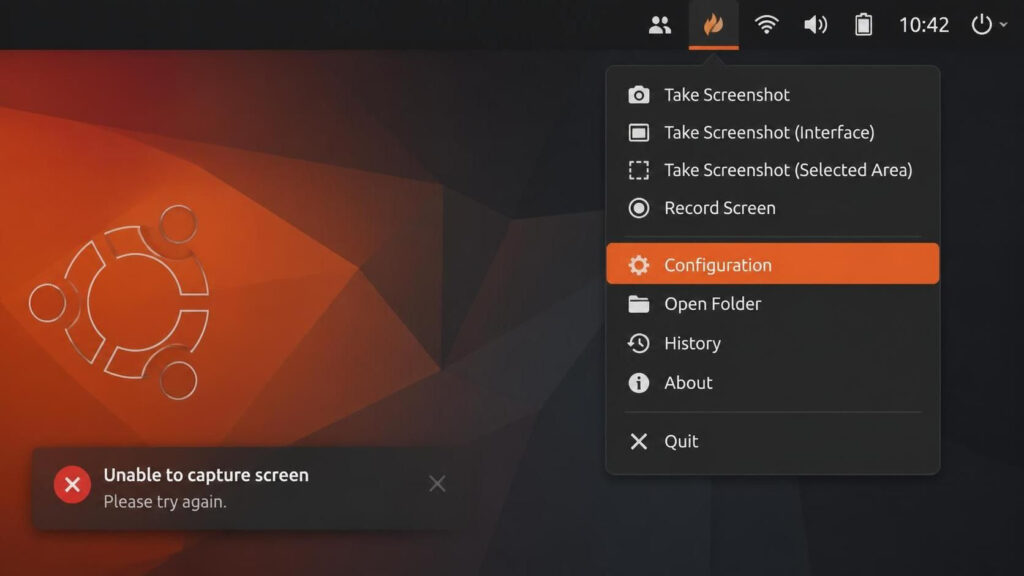
After that first Configuration open, screenshots usually work from the tray, keyboard shortcuts, and flameshot gui. If you skipped or denied the permission dialog earlier, jump to the permission-reset steps below.
Why this error happens on Ubuntu
Ubuntu desktop sessions default to Wayland. Unlike classic X11, Wayland blocks silent screen grabs. Flameshot must go through xdg-desktop-portal (and on GNOME, xdg-desktop-portal-gnome). If the app has not completed that permission flow, or if it is running under XWayland without a working portal path, you get Unable to capture screen.
Snap packages and missing portal packages make this worse. Prefer the apt package for Ubuntu, and keep the GNOME portal stack installed.
Install Flameshot the reliable way
If you already have a broken or Snap-based install, clean it up first.
sudo apt remove --purge flameshot
sudo snap remove flameshot
sudo apt autoremove --purge
Then install from Ubuntu’s repositories.
sudo apt update
sudo apt install flameshot
Confirm the portal packages used by GNOME Wayland.
sudo apt install xdg-desktop-portal xdg-desktop-portal-gnomeStart Flameshot once so the tray icon loads.
flameshot &Then use the tray Configuration quick fix above before your first capture.
If the error continues
1. Grant screenshot permission (Flatpak or portal store)
Official Flameshot docs recommend forcing screenshot permission through the portal permission store. This helps Flatpak installs and also helps many apt users on Ubuntu/Fedora GNOME.
flatpak permission-set screenshot screenshot org.flameshot.Flameshot yesIf you previously denied the prompt, reset the screenshot permission entry, then try Flameshot again and choose Allow.
dbus-send --session --print-reply=literal \
  --dest=org.freedesktop.impl.portal.PermissionStore \
  /org/freedesktop/impl/portal/PermissionStore \
  org.freedesktop.impl.portal.PermissionStore.DeletePermission \
  string:'screenshot' string:'screenshot' string:''
2. Force native Wayland for apt installs
Some apt builds start under XWayland, which can break the portal association (“Failed to associate portal window with parent window”). Launch once with native Wayland.
QT_QPA_PLATFORM=wayland flameshot guiIf that works, make it permanent for menu and tray launches by updating the desktop file.
sudo sed -i 's|Exec=flameshot|Exec=env QT_QPA_PLATFORM=wayland flameshot|g' /usr/share/applications/org.flameshot.Flameshot.desktopFor a Print Screen shortcut that still fails, bind the key to.
bash -c -- "QT_QPA_PLATFORM=wayland flameshot gui"3. wlroots / Hyprland users. Enable the grim adapter
On wlroots-based compositors, edit ~/.config/flameshot/flameshot.ini and set.
useGrimAdapter=true
disabledGrimWarning=true
Install grim and the matching portal package for your compositor when needed.
Last resort. Switch the session to Xorg
Disabling Wayland still works, but you lose Wayland’s security and display model. Prefer the tray Configuration and portal fixes first. Only use this if you need X11 for other tools as well.
- Open the GDM config.
sudo nano /etc/gdm3/custom.conf - Find
#WaylandEnable=falseand change it toWaylandEnable=false. - Save, exit, and reboot.
sudo reboot - On the login screen, confirm your session is Ubuntu on Xorg if the picker is available.
Example [daemon] section after the change.
[daemon]
# Uncomment the line below to force the login screen to use Xorg
WaylandEnable=false
Quick checklist
- Open Flameshot tray > Configuration once before the first capture.
- Allow the GNOME/Ubuntu screenshot or screen-share prompt when it appears.
- Prefer
apt install flameshot; avoid Snap if captures fail. - Keep
xdg-desktop-portalandxdg-desktop-portal-gnomeinstalled. - Reset or grant portal screenshot permission if you denied it earlier.
- Try
QT_QPA_PLATFORM=waylandfor apt installs stuck on XWayland. - Disable Wayland only as a last resort.
Acknowledgment
The older Xorg/GDM workaround was inspired by community write-ups, including notes from Bhagavan Bollina. Wayland permission and portal guidance follows current Flameshot troubleshooting docs and reports from Ubuntu GNOME users. The tray Configuration first-run fix is the practical path we recommend before changing display-server settings.
With Configuration opened once from the tray, and screenshot permission allowed. Flameshot should capture normally on modern Ubuntu without switching away from Wayland.

Hi! Thank you for the solution. This works!
But I’d like to mention that this disables wayland and you’re not able to use the three finger gestures anymore. 🙁
Seems like I have to choose between flameshot and three finger gestures.