Your laptop’s camera and microphone are incredibly useful tools. They help you attend meetings, record videos, and communicate with friends and colleagues. But these same tools can also become a privacy risk if they are accessed without your knowledge. Many people worry about hackers or malicious apps secretly listening through the microphone or watching through the webcam.
The good news is that modern operating systems provide strong controls to prevent unauthorized access. Even better, you can combine software settings with simple physical protections to create a setup that is extremely difficult to bypass.
This guide explains everything in a simple and practical way. You will learn how to block mic and camera snooping on both Windows and macOS, how to secure your browser, how to disable voice assistants that keep microphones active, and how to use physical tools that provide the strongest protection possible.
Why camera and microphone snooping is a real concern
Most privacy incidents do not come from Hollywood style hacking. They usually come from simple things such as.
- Installing a suspicious application
- Granting permissions to unknown browser extensions
- Visiting websites that request camera or microphone access
- Malware that runs quietly in the background
Once an application receives permission, it may continue to access your microphone or camera without you noticing. This is why it is important to control access at multiple levels, not just once during installation.
A good security setup uses three layers.
- Physical blocking
- Operating system privacy settings
- Browser and application level controls
Let us start with the most secure layer.
Physical protections that cannot be hacked
Software can fail. Settings can be changed by updates or malware. But a physical barrier is simple and reliable. If the camera lens is covered or the microphone circuit is disconnected, no software can bypass it.
Using a webcam cover
The easiest and cheapest method is to place a physical cover over your webcam. You can use.
- A dedicated webcam cover slider
- A small piece of electrical tape
- A sticky note or removable sticker
When the lens is covered, the camera cannot capture anything even if malware activates it.
Many modern business laptops also include a built in privacy shutter that slides over the camera. If your device has this feature, make a habit of closing it whenever you are not in a video call.
Blocking the microphone with a dummy plug
Unlike a camera, a microphone is harder to block physically. However, there is a clever trick. When you plug a device into the headphone or microphone jack, most laptops automatically disable the internal microphone and switch to the external one.
A microphone blocker or dummy plug takes advantage of this behavior. It is a small plug that contains no real microphone. The system believes an external mic is connected, so it stops using the internal mic.
If you do not want to buy a dedicated device, you can plug in an old or broken pair of headphones. This often achieves the same result.
How to block camera and microphone access in Windows
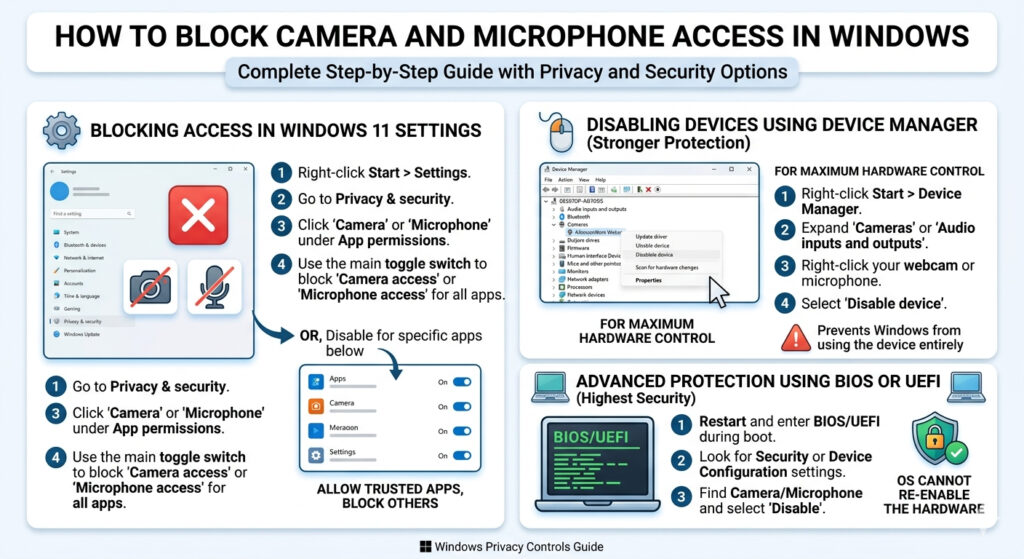
Windows provides detailed privacy controls that allow you to disable access completely or restrict it to selected applications.
Blocking camera access in Windows 11
- Right click the Start button and open Settings
- Go to Privacy and security
- Under App permissions, click Camera
- To block all access, turn off the main Camera access switch
- To block specific apps only, leave the main switch on and disable individual apps in the list
This allows you to keep the camera working for trusted applications such as Zoom while blocking unknown or unnecessary apps.
Blocking microphone access in Windows 11
- Open Settings
- Go to Privacy and security
- Click Microphone
- Toggle off Microphone access to block all applications
- Or disable only selected apps in the list below
Disabling devices using Device Manager
For stronger protection, you can disable the hardware entirely.
- Right click the Start button
- Select Device Manager
- Expand Cameras or Audio inputs and outputs
- Right click your webcam or microphone
- Select Disable device
This prevents Windows from using the device at all until you manually enable it again.
Advanced protection using BIOS or UEFI
Some laptops allow you to disable the camera or microphone directly in the BIOS or UEFI firmware. This happens before the operating system loads, which means even malware cannot access the hardware.
To do this.
- Restart your computer
- Enter BIOS or UEFI setup using the key shown during boot
- Look for security or device configuration settings
- Disable the camera or microphone
This method is especially useful for high security environments.
How to block camera and microphone access on macOS
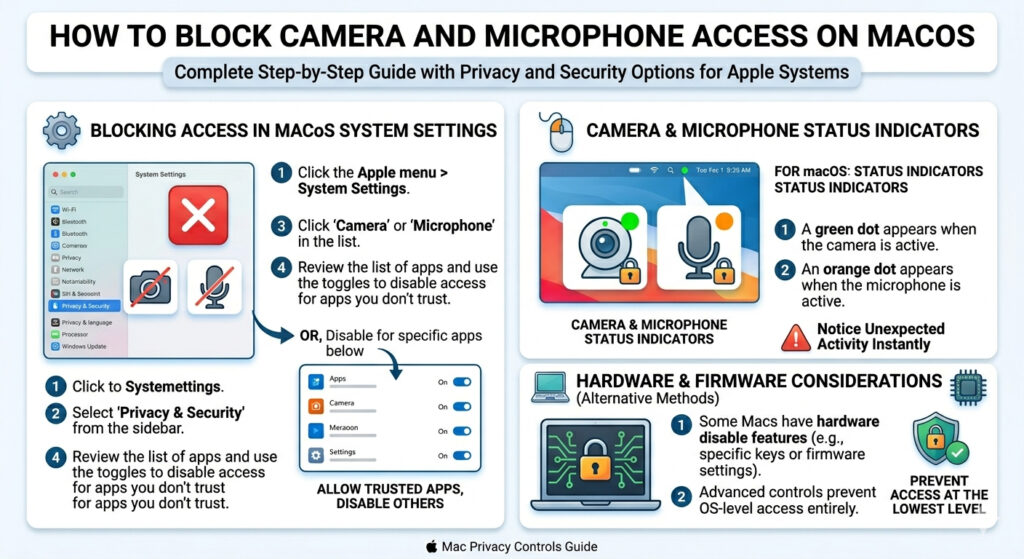
Apple provides similar controls in System Settings. The interface is slightly different, but the logic is the same.
Blocking camera access on macOS
- Click the Apple menu and open System Settings
- Select Privacy and Security
- Click Camera
- Toggle off access for any application you do not trust
Blocking microphone access on macOS
- Go to System Settings
- Select Privacy and Security
- Click Microphone
- Review the list and disable apps that should not use the microphone
macOS uses colored indicators to show hardware usage.
- A green dot appears when the camera is active
- An orange dot appears when the microphone is active
These indicators are shown in the top right corner of the screen, making it easier to notice unexpected activity.
How to detect if your mic or camera is currently being used
Even after blocking permissions, it is good to know how to check for active usage.
On Windows
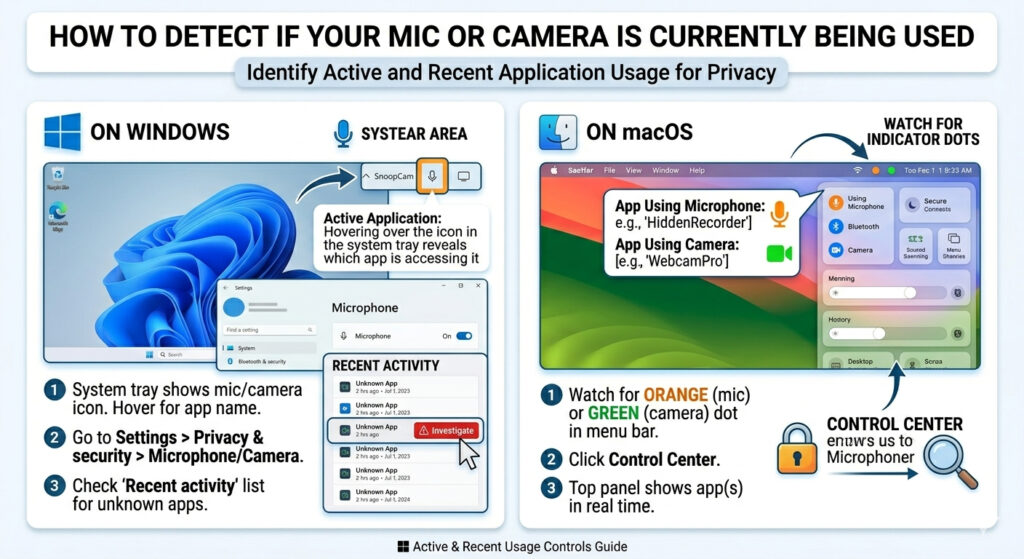
Windows shows a microphone icon in the system tray when an app is using the mic. Hovering over it reveals which application is currently accessing it.
You can also check recent activity.
- Go to Settings
- Open Privacy and security
- Click Microphone or Camera
- Scroll to Recent activity to see which apps accessed the device in the last few days
If you notice unknown or suspicious applications in this list, investigate them immediately.
On macOS
macOS makes this process very simple.
- Watch for the orange or green indicator dots
- Click the Control Center icon in the menu bar
- The top of the panel will show which app is currently using your microphone or camera
This real time visibility is one of the easiest ways to detect hidden snooping.
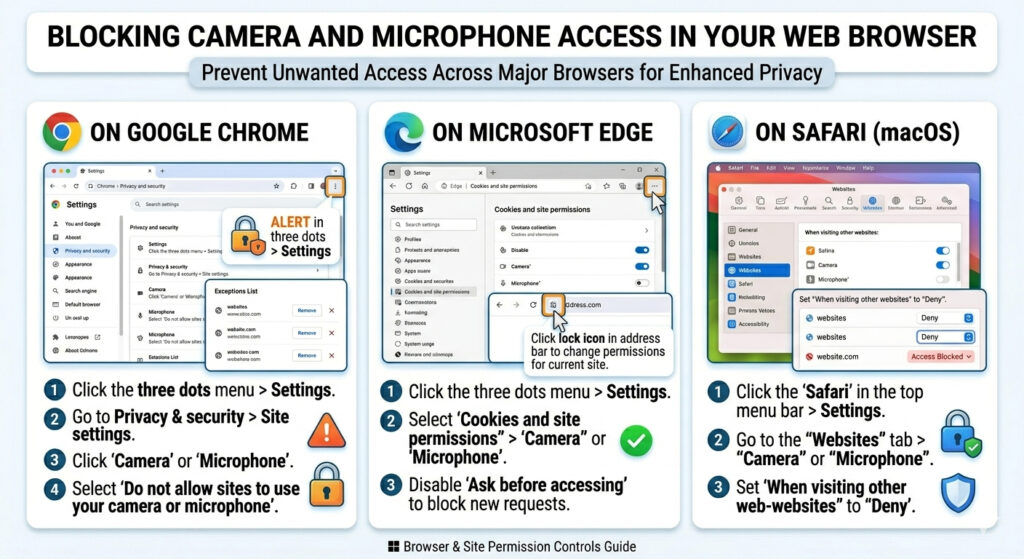
Blocking camera and microphone access in your web browser
Even if your operating system allows camera or microphone access, your browser acts as another gatekeeper. Most spying incidents on personal laptops happen through browsers rather than native apps.
Google Chrome settings
To block all websites from accessing your camera or microphone.
- Click the three dots in the top right corner
- Open Settings
- Go to Privacy and security
- Click Site settings
- Select Camera or Microphone
- Choose Do not allow sites to use your camera or microphone
You can also remove previously allowed websites from the exceptions list.
Microsoft Edge settings
Since Edge uses the same engine as Chrome, the steps are very similar.
- Open Settings from the three dot menu
- Select Cookies and site permissions
- Click Camera or Microphone
- Disable Ask before accessing to prevent sites from requesting access
You can also click the lock icon in the address bar to change permissions for the current website.
Safari settings on macOS
Safari uses a slightly different interface.
- Click Safari in the top menu
- Open Settings
- Go to the Websites tab
- Select Camera or Microphone
- Set the When visiting other websites option to Deny
This ensures new websites cannot automatically access your hardware.
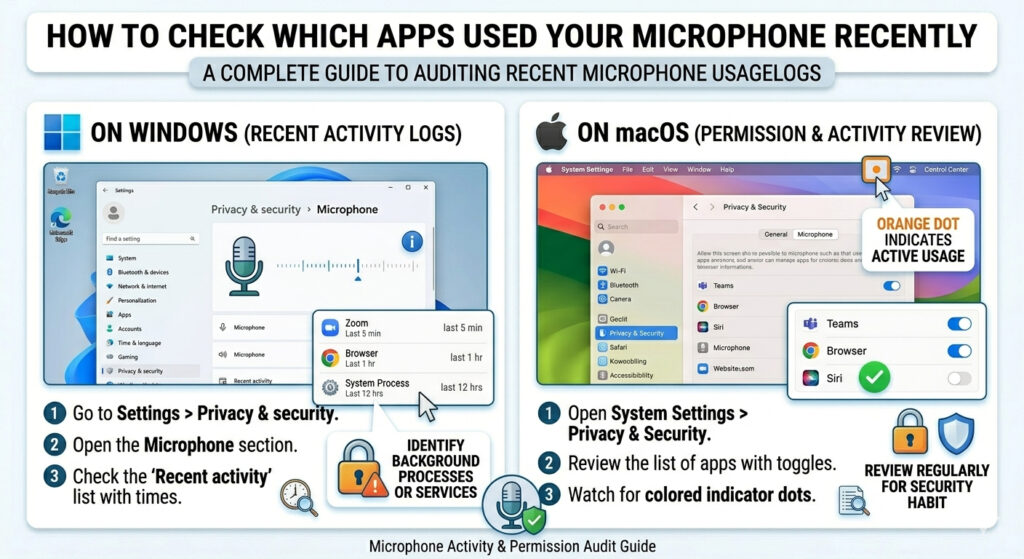
How to check which apps used your microphone recently
Sometimes you might see your microphone activate briefly and wonder why. Modern systems keep logs of recent activity so you can audit what happened.
On Windows
Go to Settings, then Privacy and security, and open the Microphone section. You will see a list of applications along with the last time they accessed the microphone. This helps you identify background processes or services that might still be listening.
On macOS
Open System Settings and navigate to Privacy and Security, then Microphone. Any app listed there has permission to access your microphone, even if it is not currently open. Reviewing this list regularly is a good security habit.
Understanding false alarms and normal background usage
Not every microphone activation is a sign of spying. Some normal situations include.
- Opening sound settings which show input levels
- Using video conferencing apps
- Voice assistants waiting for wake words
Knowing these scenarios helps you avoid unnecessary panic while still staying alert to real threats.
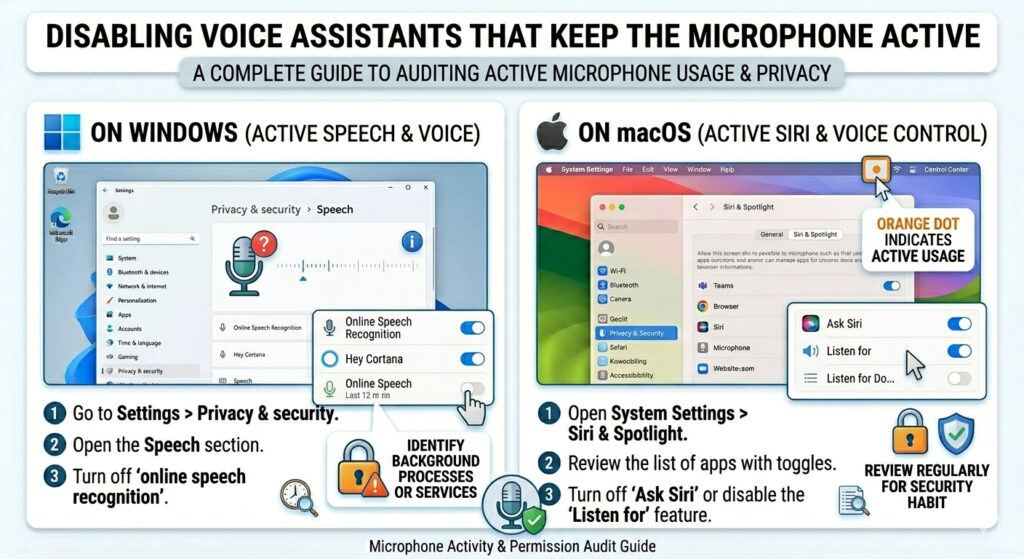
Disabling voice assistants that keep the microphone active
Voice assistants such as Siri or speech recognition services often keep the microphone listening in the background so they can detect commands like “Hey Siri.” If you want complete privacy, you should disable these features.
Disabling speech and voice features in Windows
- Open Settings
- Go to Privacy and security
- Click Speech and turn off online speech recognition
- Open Voice activation and disable app access
- Go to Accessibility and ensure Voice access is turned off
This stops Windows from constantly monitoring your microphone for voice commands.
Disabling Siri and voice control on macOS
- Open System Settings
- Click Siri and Spotlight
- Turn off Ask Siri or disable the Listen for feature
- Go to Accessibility and disable Voice Control
- Open Keyboard settings and turn off Dictation
After these changes, your microphone will only activate when you explicitly use it.
Using antivirus and security software for extra protection
A good security program can detect spyware, keyloggers, and remote access trojans that try to activate your microphone or camera. Regular scans help identify threats that bypass normal permissions.
Look for security tools that specifically mention webcam and microphone protection. Some programs monitor system libraries and block suspicious attempts to access recording devices.
Make browser permission checks a monthly habit
Operating system updates and browser updates sometimes reset privacy settings. Applications may also request permissions again after updates.
A simple monthly routine can keep your system secure.
- Check camera permissions
- Check microphone permissions
- Review browser site settings
- Run a malware scan
This takes only a few minutes but greatly reduces long term risk.
Combining all methods for maximum privacy
No single method is perfect on its own. The safest approach is to combine physical and software protections.
A strong setup looks like this.
- Webcam covered with a slider or tape
- Microphone blocked using a dummy plug when not needed
- Camera and mic permissions disabled for unnecessary apps
- Browsers configured to block all site access by default
- Voice assistants disabled
- Regular antivirus scans
With this layered approach, even if one defense fails, others remain active.
Related. 5 Best Apps to Catch Someone Snooping in Your Android Phone
Final thoughts
Your laptop’s camera and microphone are powerful tools, but they also represent one of the most sensitive entry points into your private life. The idea of someone watching or listening without your knowledge is unsettling, but modern systems give you all the controls needed to prevent it.
By using a combination of physical blockers, operating system settings, and browser level controls, you can make unauthorized access extremely unlikely. The steps may seem technical at first, but once configured, they require very little maintenance.
If you take one lesson from this guide, let it be this. Physical protection is the only method that is completely immune to software attacks. Even a small piece of tape over your webcam can provide peace of mind that no hacker or malicious app can bypass.
With a few minutes of setup and occasional checks, you can use your laptop confidently, knowing that your microphone and camera are working only when you want them to.
