The Steam Deck can do much more than run modern PC games. With PCSX2, you can also play a large part of the PlayStation 2 library on Steam Deck, including games such as God of War, Shadow of the Colossus, Gran Turismo, Final Fantasy X, and Metal Gear Solid 2.
In this guide, you’ll learn how to play PS2 games on Steam Deck, install PCSX2, add your BIOS and legally dumped game files, configure the controls and graphics, and add PCSX2 games to Steam so they can be launched from Gaming Mode.
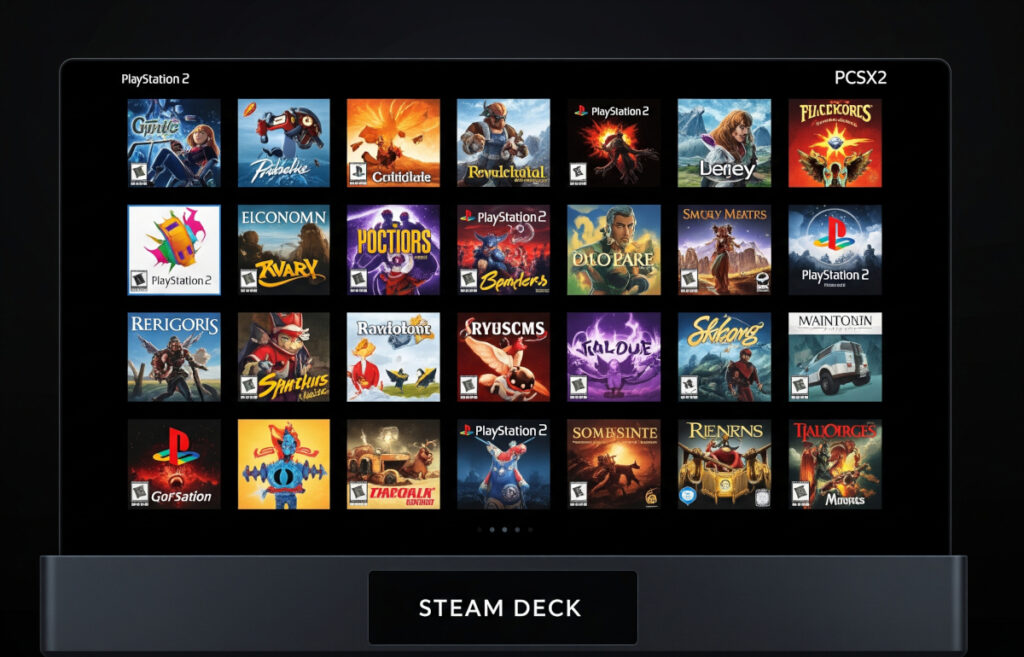
Whether you’re new to emulation or already use your Steam Deck for retro gaming, the process is fairly straightforward. PCSX2 is officially supported on Linux through Flatpak and AppImage, and its compatibility database shows that the vast majority of tested PS2 titles are playable.
Useful Steam Deck Accessories for PS2 Gaming
If you’re planning to keep a large PS2 collection on your Steam Deck or play on a TV, extra storage and a second controller can make the setup more convenient.
| Product | Best for | Why consider it | Typical use |
|---|---|---|---|
| SanDisk Extreme 512GB | PS2 game storage | Fast microSD storage | Large PS2 library |
| SanDisk Extreme 1TB | Larger collections | More space for disc images | Large retro library |
| Sony DualSense | TV gaming | Comfortable wireless controller | Docked Steam Deck |
Prices vary by seller, discounts, and configuration. Check the current Amazon listing before buying.
Why Play PS2 Games on Steam Deck?
PS2 emulation works particularly well as a Steam Deck use case because the device combines PC hardware, a built-in controller, and a portable display in one system.
- Huge game library. The PlayStation 2 has one of the largest console game libraries ever released.
- High compatibility. PCSX2 supports a very large portion of the PS2 library, although performance can vary by game.
- Better visuals. You can increase the internal resolution and use widescreen enhancements for supported games.
- Portable gaming. Your PS2 collection can travel with the Steam Deck instead of requiring the original console and TV.
- Steam integration. With the right setup, you can add PCSX2 games to Steam and launch them from Gaming Mode.
What You’ll Need
- Steam Deck with SteamOS updated
- PCSX2, installed through Flatpak, AppImage, or a suitable setup such as EmuDeck
- Your own PS2 BIOS files, dumped from your own console
- Your own PS2 game dumps, created from games you own
- MicroSD card or internal storage for your games
- Keyboard and mouse, optional but useful during initial setup
Important: PCSX2 itself is an emulator. You should obtain BIOS files and game files from hardware and games you own, and check the laws that apply where you live.
Step 1. Switch to Desktop Mode
Most PCSX2 setup tasks are easier in the Steam Deck’s desktop environment.
- Hold the Power button.
- Select Switch to Desktop.
The Steam Deck will switch to KDE Plasma, where you can install PCSX2 and organize your PS2 files.
Step 2. Install PCSX2 on Steam Deck
There are several ways to install PCSX2 on Steam Deck. For a simple manual installation, the Discover Store is the easiest option. PCSX2 officially supports both Flatpak and AppImage on Linux.
Option 1. Install PCSX2 from Discover
- Open Discover in Desktop Mode.
- Search for PCSX2.
- Select the PCSX2 Flatpak and click Install.
- After installation, launch PCSX2 and follow its setup wizard.
Option 2. Install PCSX2 with the Terminal
flatpak install net.pcsx2.PCSX2
To launch it from the terminal:
flatpak run net.pcsx2.PCSX2
Option 3. Use EmuDeck
If you want a more automated Steam Deck emulation setup, EmuDeck can simplify emulator installation, folder organization, and Steam library integration. This is useful if you plan to use PCSX2 alongside other retro emulators.
Tip: If the Flatpak version gives you file-access problems, the official PCSX2 documentation also provides an AppImage version for Linux.
Step 3. Add Your PS2 BIOS Files
PCSX2 requires a PS2 BIOS to start games. You need to dump the BIOS from your own PlayStation 2 rather than downloading a BIOS file from the internet.
- Place your legally dumped BIOS files in a dedicated folder on the Steam Deck.
- Launch PCSX2.
- When PCSX2 asks for the BIOS directory, select the folder containing your BIOS files.
- Complete the PCSX2 setup wizard.
PCSX2 supports BIOS files from different PS2 regions. Use the BIOS that corresponds to your own console where appropriate.
Step 4. Add Your PS2 Games
For this guide, use game dumps created from PS2 discs you own. You can store the files on the Steam Deck’s internal SSD or a microSD card.
A simple folder structure is:
/home/deck/Games/PS2/
If you use EmuDeck, follow the folder structure it creates for PS2 games. Otherwise, you can create your own folder and tell PCSX2 where your games are stored.
- Open PCSX2.
- Add your PS2 games directory to the game list.
- PCSX2 will scan the directory and display supported games.
Step 5. Configure the Steam Deck Controller
PCSX2 can use the Steam Deck’s built-in controls, so you normally do not need a separate controller for handheld play.
- Open Settings > Controllers in PCSX2.
- Select the Steam Deck controller input available in your setup.
- Check the button and analog-stick mapping.
- Save the configuration.
If you connect the Steam Deck to a TV, a wireless controller such as the Sony DualSense can be a convenient alternative to the built-in controls.
Step 6. Configure PCSX2 Graphics for Steam Deck
PCSX2 lets you increase the internal resolution and adjust graphics settings to get a cleaner image than the original PS2 output. The best settings depend on the individual game.
- Open Graphics Settings.
- Set the graphics renderer to Vulkan.
- Start with 2x internal resolution.
- Try 3x for games that maintain good performance.
- Enable widescreen options when supported by the game.
Some demanding games can require lower settings. PCSX2’s own documentation notes that performance can vary considerably between games and that more demanding titles can need stronger hardware or lower rendering settings.
Good starting point: Use 2x resolution first. If the game runs consistently, test 3x and keep it only if performance remains stable.
Step 7. How to Add PCSX2 Games to Steam
If you want your PS2 games on Steam Deck to appear in Steam Gaming Mode, you have several options. EmuDeck users can use Steam ROM Manager to generate Steam shortcuts, while a standalone PCSX2 setup can use Steam’s non-Steam game feature.
Method 1. Use Steam ROM Manager with EmuDeck
- Switch to Desktop Mode.
- Open Steam ROM Manager through your EmuDeck setup.
- Select the PCSX2 or PS2 parser.
- Preview the entries that will be added.
- Save or parse the games into Steam.
- Return to Gaming Mode and look for your PS2 games in the Steam library.
This is the easiest approach if your goal is to add PCSX2 games to Steam rather than opening the PCSX2 interface every time.
Method 2. Add PCSX2 as a Non-Steam Game
- In Desktop Mode, open Steam.
- Click Add a Non-Steam Game.
- Select PCSX2.
- Add it to your Steam library.
- Switch back to Gaming Mode and launch PCSX2 from Steam.
This method is simple, but it adds the emulator rather than automatically creating a separate Steam library entry for every PS2 game.
Optional. Create Individual PS2 Game Shortcuts
If you use PCSX2 without EmuDeck, you can create individual shortcuts for games. This is useful when you want a specific PS2 title to appear alongside your normal Steam games.
For example, a Flatpak-based PCSX2 setup can use a command similar to:
flatpak run net.pcsx2.PCSX2 "/home/deck/Games/PS2/FFX.iso"
The exact launch arguments can vary depending on your PCSX2 version and setup, so test the game from PCSX2 first before creating the Steam shortcut.
Storage for a Large PS2 Library
PS2 disc images can quickly consume storage space if you keep a large collection. A fast microSD card is a practical way to expand Steam Deck storage without filling the internal SSD.
A SanDisk Extreme 512GB is a reasonable size for a substantial PS2 collection. If you expect to keep many disc images and other games on the same card, the 1TB SanDisk Extreme gives you more room.
Pro Tips for PS2 Emulation on Steam Deck
- Start at 2x internal resolution and increase it only when performance is stable.
- Use game-specific settings when a particular title has graphical problems.
- Keep PCSX2 updated to a current stable or nightly build according to your preference. PCSX2 provides both release types.
- Use save states when convenient, but also keep normal in-game saves.
- For TV gaming, connect the Steam Deck to a dock and use a separate controller if preferred.
Troubleshooting Common PCSX2 Issues
| Issue | What to try |
|---|---|
| Game runs slowly | Lower internal resolution from 3x to 2x or 1x and test again. |
| Controls do not work | Check the PCSX2 controller configuration and Steam Input settings. |
| Black screen | Test another renderer and check the game’s PCSX2 compatibility information. |
| Graphics glitches | Disable aggressive enhancements and try the game’s recommended settings. |
| Game does not appear in Steam | Re-run Steam ROM Manager or add PCSX2 manually as a non-Steam game. |
| Flatpak cannot access files | Check the Flatpak file permissions or try the official PCSX2 AppImage. |
Quick Questions About PS2 on Steam Deck
- Can you play PS2 games on Steam Deck?
Yes. PCSX2 can run a large portion of the PS2 library on Steam Deck, although performance varies between games. - Is using PCSX2 illegal?
PCSX2 is an emulator. The legal issues generally concern how BIOS files and game copies are obtained and used, so use your own console BIOS and game dumps and check the laws applicable to you. - How much RAM did the PS2 have?
The original PlayStation 2 had 32 MB of main system RAM, plus 4 MB of dedicated graphics memory. - How do you play PS2 games on PCSX2?
Install PCSX2, configure your legally dumped BIOS, add your PS2 game directory, configure the controller and graphics, then select a game from the PCSX2 library. - How do you add PCSX2 games to Steam?
EmuDeck users can use Steam ROM Manager to create Steam entries for their PS2 games. Without EmuDeck, you can add PCSX2 as a non-Steam game and launch your games through the emulator. - What is the best PS2 emulator for Steam Deck?
PCSX2 is the main PS2 emulator covered in this guide and provides extensive compatibility and configuration options. - Do PS2 games run well on Steam Deck?
Many games run well, but results are not identical across the PS2 library. More demanding games may require lower resolution or game-specific settings. - How do you install PCSX2 on Steam Deck?
You can install the Flatpak through Discover or use the official PCSX2 AppImage. Read the full setup. How to Install PCSX2 on Steam Deck
Related Steam Deck guides:
- How to Connect and Use an External Monitor with Your Steam Deck
- How to Stream Xbox Games to Your Steam Deck
- Play GOG Games on Steam Deck: A Step-by-Step Guide with Lutris
- How to Install and Play Amazon Luna on Steam Deck
Final Thoughts
PCSX2 makes the Steam Deck a capable portable system for revisiting the PS2 era. Once the emulator, BIOS, game files, controller and graphics settings are configured, you can play your own PS2 games directly from the Deck.
If you want the cleanest experience in Gaming Mode, using Steam ROM Manager to add PCSX2 games to Steam is worth setting up. For larger libraries, a fast microSD card can also give you the storage needed without filling the Steam Deck’s internal drive.
