Amazon Luna gives Steam Deck owners another way to play games without installing them locally. Because Luna streams games from the cloud, your Steam Deck does not need to download the full game or dedicate storage to every title.
There is no need to wait for a native SteamOS Luna application. You can access Amazon Luna on Steam Deck through a supported web browser, then add the browser as a non-Steam game so Luna can launch from Game Mode.
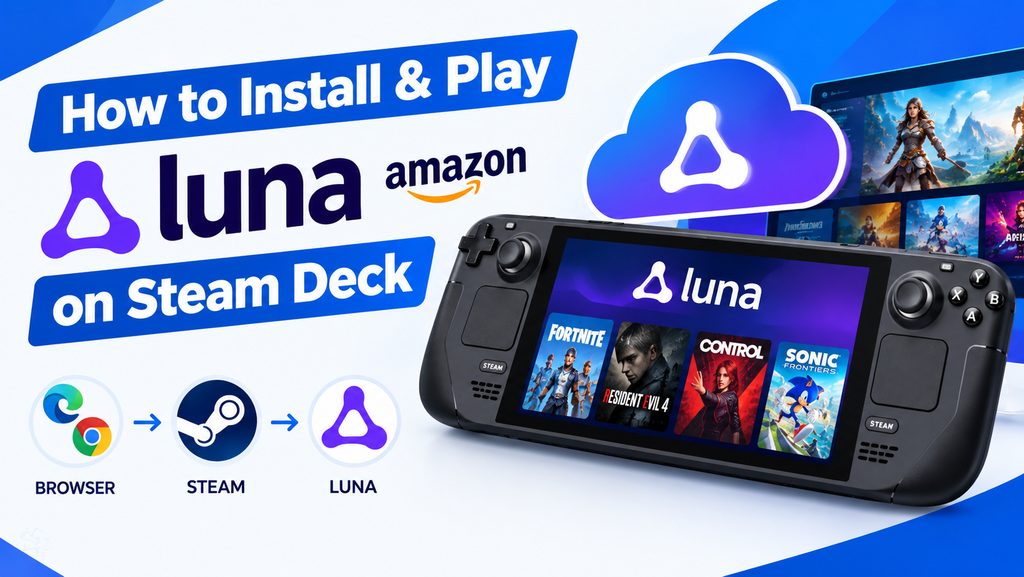
This guide covers how to install a browser, create a Steam shortcut for Luna, configure Steam Deck controls, and improve streaming stability with Ethernet or a dock. It also explains which Steam Deck accessories are actually worth buying for cloud gaming.
Best Amazon Luna Accessories for Steam Deck
You do not need expensive hardware to use Luna. The most useful accessories are the ones that improve your network connection, charging setup, or TV and monitor experience.
| Accessory | Best for | Why buy it |
|---|---|---|
| Steam Deck USB-C Dock | TV or monitor gaming | Ethernet, HDMI and USB connections |
| USB-C Ethernet Adapter | Stable network connection | Useful when Wi-Fi causes lag or stutter |
| 45W USB-C PD Charger | Docked and long sessions | Keeps the Steam Deck powered while streaming |
| DualSense Wireless Controller | TV gaming | Comfortable alternative to the built-in controls |
Best upgrade for Luna: If your Wi-Fi connection is already strong and stable, you probably do not need to buy anything. If you experience inconsistent latency, an Ethernet connection is the first accessory worth considering.
Why Play Amazon Luna on Steam Deck?
Amazon Luna is a cloud gaming service. The game runs remotely and the video stream is delivered to your device, while your controller input is sent back to the cloud. That means the Steam Deck’s local storage and GPU are much less important than they would be for a locally installed PC game.
- No large game downloads. Luna streams supported games instead of installing the full game on your Steam Deck.
- Saves can follow your account. Amazon describes Luna as a cloud service where supported game progress can be synchronized across compatible devices.
- Less local storage pressure. You can use Luna without dedicating tens or hundreds of gigabytes to every streamed game.
- Controller-friendly. Luna supports controller input, although browser and controller compatibility can vary by platform and browser.
What You Need to Play Amazon Luna on Steam Deck
- A Steam Deck
- An Amazon account with access to Luna in your region
- A supported browser such as Microsoft Edge or Google Chrome
- A stable Wi-Fi connection or, preferably for a docked setup, Ethernet
- The Steam Deck’s built-in controls or a compatible external controller
- Optional: a USB-C dock with Ethernet for a TV or monitor setup
Amazon’s Luna terms state that compatible devices and requirements can change over time, and streaming quality depends on factors including your device, location, network connection, bandwidth, and subscription status.
Step 1: Switch the Steam Deck to Desktop Mode
The easiest way to install and configure a browser is through Steam Deck’s KDE Plasma desktop.
- Press and hold the Power button.
- Select Switch to Desktop.
After the desktop loads, open the Discover Software Center.
Step 2: Install a Compatible Browser
Use a current Chromium-based browser for the Luna web experience. Microsoft Edge and Google Chrome are practical choices on Steam Deck because Chromium-based browsers generally provide strong support for web gamepad functionality.
For Linux browser-based game streaming, Amazon’s current browser guidance for its streaming technology recommends Chrome, Edge, or another Chromium-based application when controller support is important.
Install Microsoft Edge
- Open Discover.
- Search for Microsoft Edge.
- Install the available Edge package.
- Launch Edge once to make sure it opens normally.
Or Install Google Chrome
If you prefer Chrome, install it from Discover and use the same basic Steam shortcut method described below.
Step 3: Open Amazon Luna in the Browser
Before creating a Game Mode shortcut, test Luna directly in Desktop Mode.
- Open Edge or Chrome.
- Visit Amazon Luna.
- Sign in to your Amazon account.
- Start a game and check whether video and controller input work correctly.
If Luna works correctly in Desktop Mode, you can turn the browser into a Game Mode shortcut.
Step 4: Add Luna to Steam Game Mode
You do not need a dedicated Luna application to make it feel like a Steam Deck game. Add your browser as a non-Steam game and configure it to open Luna directly.
- Open Steam in Desktop Mode.
- Select Add a Game.
- Choose Add a Non-Steam Game.
- Select your installed Edge or Chrome browser.
- Add it to your Steam Library.
Rename the shortcut to Amazon Luna so it is easy to find from Game Mode.
Step 5: Make the Browser Open Luna Directly
Open the new shortcut’s Properties window. The exact executable path depends on how your browser was installed, so do not copy an old Flatpak path from another Steam Deck guide blindly.
The important part is adding the Luna web address to the browser launch command. A browser shortcut can then open Luna automatically instead of showing the normal browser homepage.
https://luna.amazon.com/After configuring the shortcut, return to Game Mode and test it. If the browser opens Luna correctly, you now have a simple Game Mode entry for the service.
Step 6: Configure Steam Deck Controls
The Steam Deck’s built-in controls are usually the simplest option for handheld Luna gaming. If the browser does not detect the controller correctly, check the Steam Input configuration for your non-Steam shortcut.
- Open the Amazon Luna shortcut in your Steam Library.
- Open its Controller settings.
- Make sure Steam Input is available for the shortcut.
- Test the controls in Luna before starting a long session.
For browser-based game streaming on Linux, Chromium-based browsers are generally the safer choice when gamepad detection matters. Amazon’s current streaming documentation specifically notes controller limitations with Firefox on Linux.
Step 7: Return to Game Mode
- Return to the Steam desktop interface.
- Select Return to Gaming Mode.
- Open your Steam Library.
- Find Amazon Luna under your non-Steam games.
- Launch it and sign in if required.
From this point, Luna can be launched much like another entry in your Steam Library.
The Best Way to Improve Luna Streaming on Steam Deck
For cloud gaming, your network connection matters more than buying a faster SSD or adding extra RAM. Amazon states that Luna’s playback quality and latency depend on the network connection, bandwidth, device, location, and other factors.
1. Use Ethernet When Possible
If your Steam Deck is connected to a TV or monitor, Ethernet is one of the most useful upgrades you can make.
A Steam Deck dock with Ethernet lets you connect the Deck to your router while also providing HDMI and USB ports for a living-room setup.
If you do not need HDMI or other dock connections, a smaller USB-C Ethernet adapter is a cheaper and more portable option.
2. Use 5 GHz or 6 GHz Wi-Fi When Available
If you play handheld, Ethernet is obviously not practical. In that case, use the fastest reliable Wi-Fi band available on your router and keep the Deck reasonably close to the access point.
Do not judge your Luna connection only by download speed. Latency, interference, packet loss, and network congestion can have a much bigger effect on cloud gaming.
3. Avoid Heavy Downloads While Playing
A Steam game download, large cloud backup, video upload, or other bandwidth-heavy activity on the same connection can make cloud gaming less consistent.
4. Keep the Steam Deck Powered
Cloud gaming can still consume battery because the Steam Deck is continuously decoding video and maintaining a network connection.
For a docked setup, use a suitable USB-C PD charger. A 45W USB-C charger is a practical accessory for Steam Deck owners who want a dedicated charging setup.
Should You Buy a Controller for Amazon Luna?
You do not need another controller to play Luna on Steam Deck. The built-in controls are enough for handheld gaming.
An external controller becomes useful when the Deck is connected to a television. A DualSense wireless controller is one option if you prefer a traditional controller layout.
Amazon also sells its own Luna Controller. Amazon describes the Luna Controller as a dedicated Wi-Fi controller designed to communicate directly with Luna, which can reduce the input path through the display device.
Buying tip: Do not buy a second controller just because you are using Luna. Buy one if you primarily play docked or prefer a traditional gamepad.
Amazon Luna on Steam Deck: Wi-Fi vs Ethernet
| Connection | Best for | What to expect |
|---|---|---|
| 5 GHz Wi-Fi | Handheld gaming | Convenient and usually sufficient with a good router |
| 6 GHz Wi-Fi | Compatible modern routers | Potentially cleaner local wireless environment |
| Ethernet | Docked gaming | More consistent wired connection |
If Luna feels responsive on your current Wi-Fi connection, there is no reason to buy Ethernet hardware just for the sake of it. If you experience random stutters or latency spikes, testing Ethernet is a much more useful troubleshooting step.
Troubleshooting Amazon Luna on Steam Deck
| Problem | What to try |
|---|---|
| Controller is not detected | Use Chrome or Edge, check Steam Input, reconnect the controller, and restart the browser shortcut. |
| Video stutters | Test Ethernet, move closer to the Wi-Fi router, stop other heavy network activity, and restart the stream. |
| High input latency | Try Ethernet, reduce local network congestion, and avoid playing far from the router. |
| Browser shortcut does not open Luna | Test Luna directly in Desktop Mode first, then check the browser executable path and shortcut launch configuration. |
| Luna stops working after an update | Update the browser and check Amazon’s current Luna compatibility information. |
Avoid copying random browser flags from old Steam Deck tutorials. Browser versions, Linux packages, and cloud gaming services change, so a workaround that was useful a year ago can create a new problem today.
Can You Play Amazon Luna Without a Dock?
Yes. A dock is completely optional.
The Steam Deck’s built-in display, controls, Wi-Fi, and USB-C port are enough for Luna. A dock becomes useful when you want to connect the Deck to a TV or monitor, use Ethernet, connect USB peripherals, or charge while playing.
If you are looking for an inexpensive dock, see our guide to the Best Budget Steam Deck Docks Under $40.
Is Amazon Luna Worth Using on Steam Deck?
Luna makes the most sense when you want to play supported games without downloading and storing the entire game locally.
It is particularly useful for Steam Deck owners who have limited storage, want access to games that are awkward to run locally, or simply want another way to play from the couch.
The trade-off is that cloud gaming depends heavily on your internet connection. Unlike a locally installed Steam game, Luna cannot deliver a good experience if your network has unstable latency, packet loss, or insufficient bandwidth.
Amazon’s current Luna terms also make clear that service availability, compatible devices, content, and streaming quality can vary over time and by location.
Amazon Luna on Steam Deck: Final Verdict
You do not need a complicated setup to play Amazon Luna on Steam Deck. Install a compatible browser, test Luna in Desktop Mode, add the browser to Steam, and configure the shortcut for Game Mode.
For the best experience, focus your spending on the network connection rather than unnecessary hardware. A good Ethernet connection is more useful for a docked setup than buying extra storage, while a capable USB-C charger helps keep the Deck powered during longer sessions.
For handheld Luna: Start with the Steam Deck and your existing Wi-Fi.
For TV gaming: Add a dock with Ethernet and HDMI.
For unstable Wi-Fi: Try a USB-C Ethernet adapter or dock before buying other accessories.
For couch gaming: Consider an external wireless controller if you prefer a traditional gamepad.
Frequently Asked Questions
Can you play Amazon Luna on Steam Deck?
Yes. You can access Luna through a compatible browser on Steam Deck and add the browser to Steam as a non-Steam game for easier Game Mode access.
What is the best browser for Amazon Luna on Steam Deck?
Chrome or Microsoft Edge are sensible choices for a Linux-based Steam Deck setup because Chromium-based browsers provide strong support for web gamepad functionality. Browser compatibility can change, so keep the browser updated.
Do you need a Steam Deck dock for Luna?
No. A dock is optional. It becomes useful for connecting Ethernet, HDMI, USB accessories, and power in a docked setup.
Does Amazon Luna work with the Steam Deck controls?
It can, but browser and input compatibility matters. If the controller is not detected correctly, try Chrome or Edge and check the Steam Input configuration for your Luna shortcut.
Is Ethernet better than Wi-Fi for Amazon Luna?
Ethernet can provide a more consistent connection, particularly in a crowded wireless environment. It is most useful when the Steam Deck is docked near your router.
Do I need an SSD upgrade to play Luna?
No. Luna streams games from the cloud, so you do not need to install the streamed games on your Steam Deck. This is one of the advantages of cloud gaming for devices with limited storage.
Related Steam Deck Guides
- Best Budget Steam Deck Docks Under $40: 4K 60Hz Tested
- How to Fix Steam Deck Battery Drain: 2026 Optimization Guide
- How to Stream PS5 to Steam Deck: The Easy Remote Play Method
- How to Stream PC Games to Steam Deck with Moonlight & Sunshine
- How to Install and Play Epic Games Store on Your Steam Deck
- Play GOG Games on Steam Deck: A Step-by-Step Guide with Lutris
- What Is the Steam Deck and Why Everyone’s Talking About It
